
The File Manager provides everything you need to manage your server files directly from your browser. Whether you're uploading plugins, editing configuration files, or organizing folders, the File Manager makes server management fast and convenient. This guide covers the main features of the File Manager.
Step 1: Open Your Server
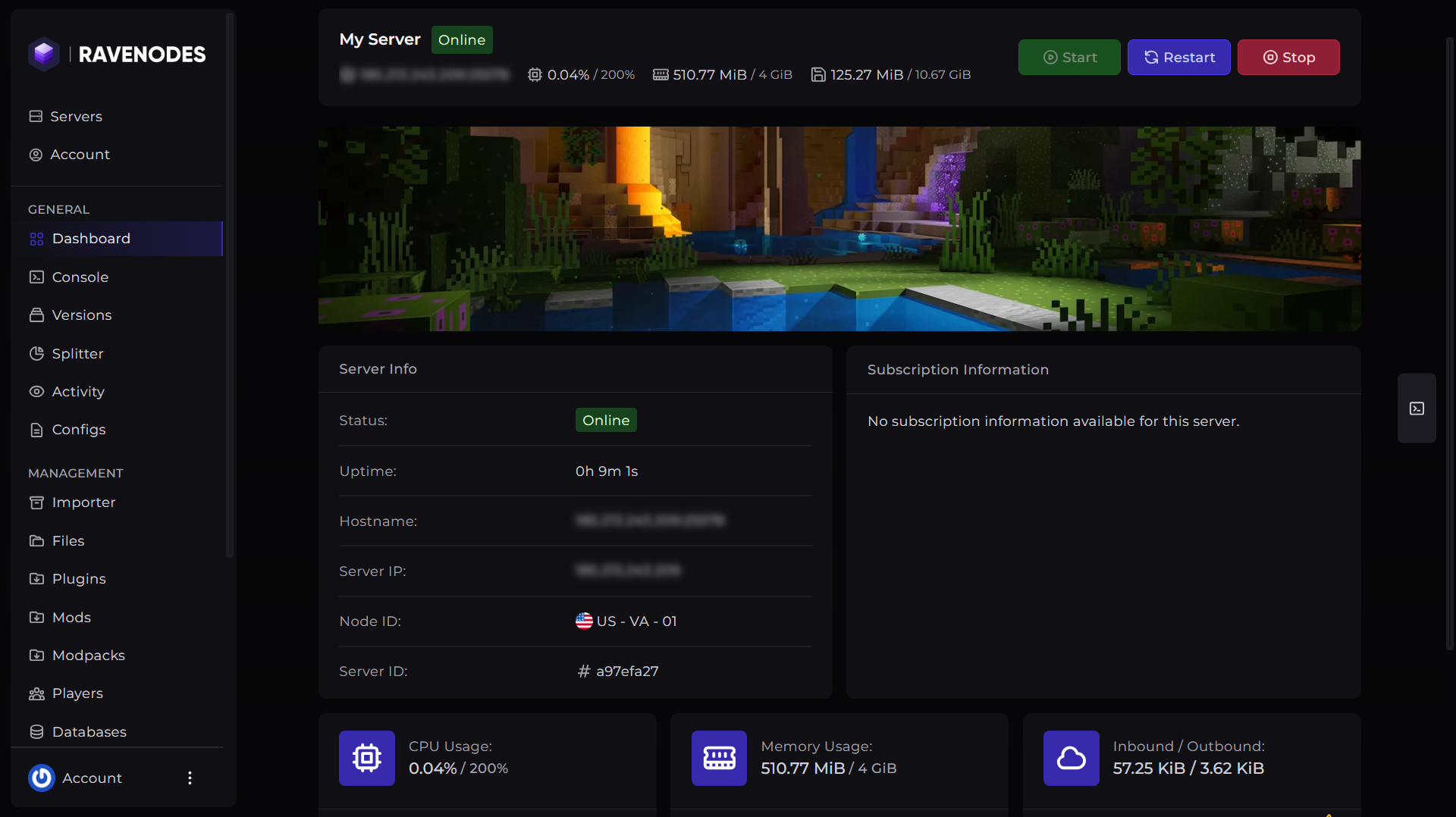
Log in to our Game Panel and head to the Minecraft server you want to modify.
Step 2: Open File Manager
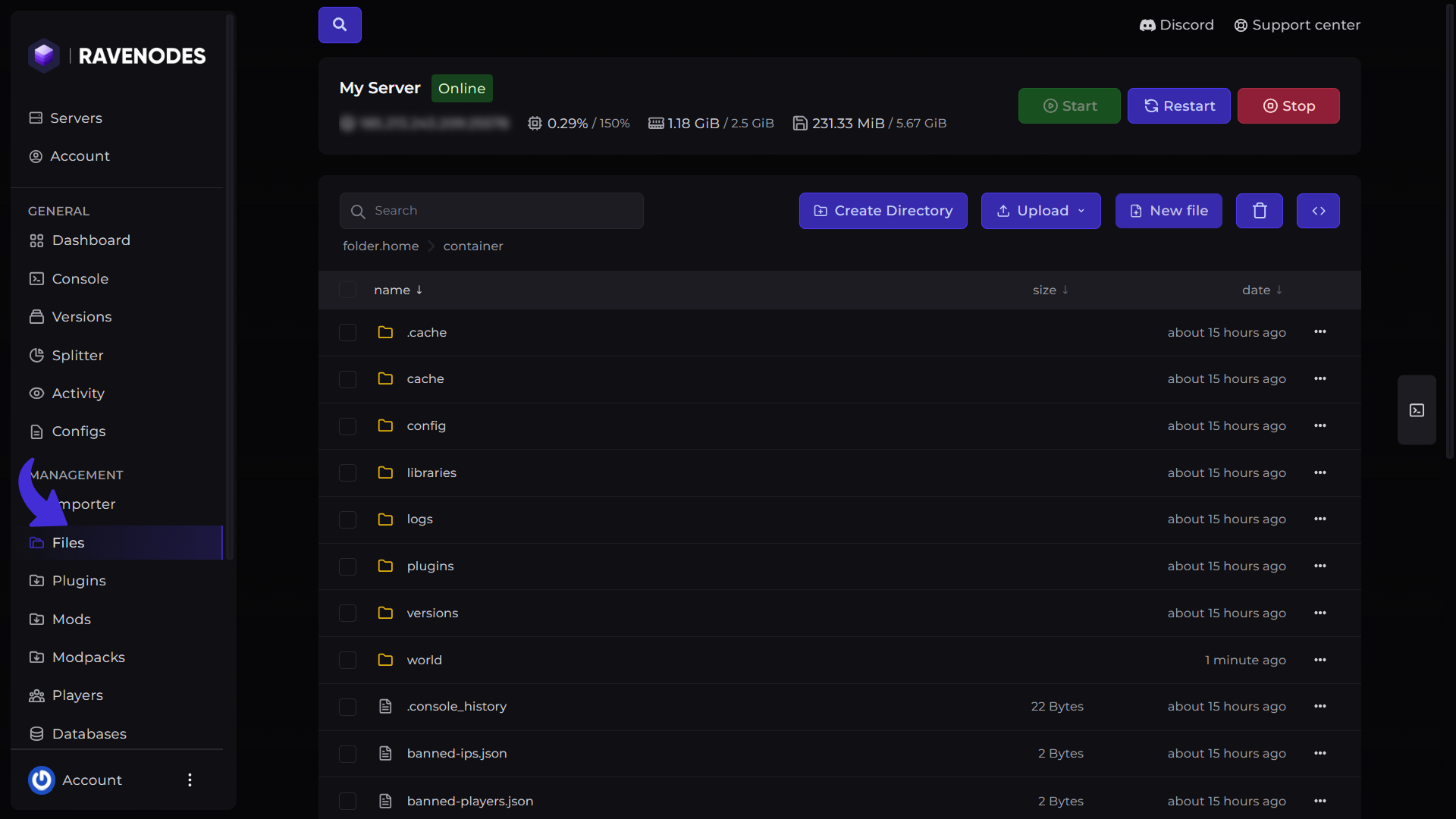
From the server navigation menu, click Files, The File Manager will will appear and display all of your available files and folders.
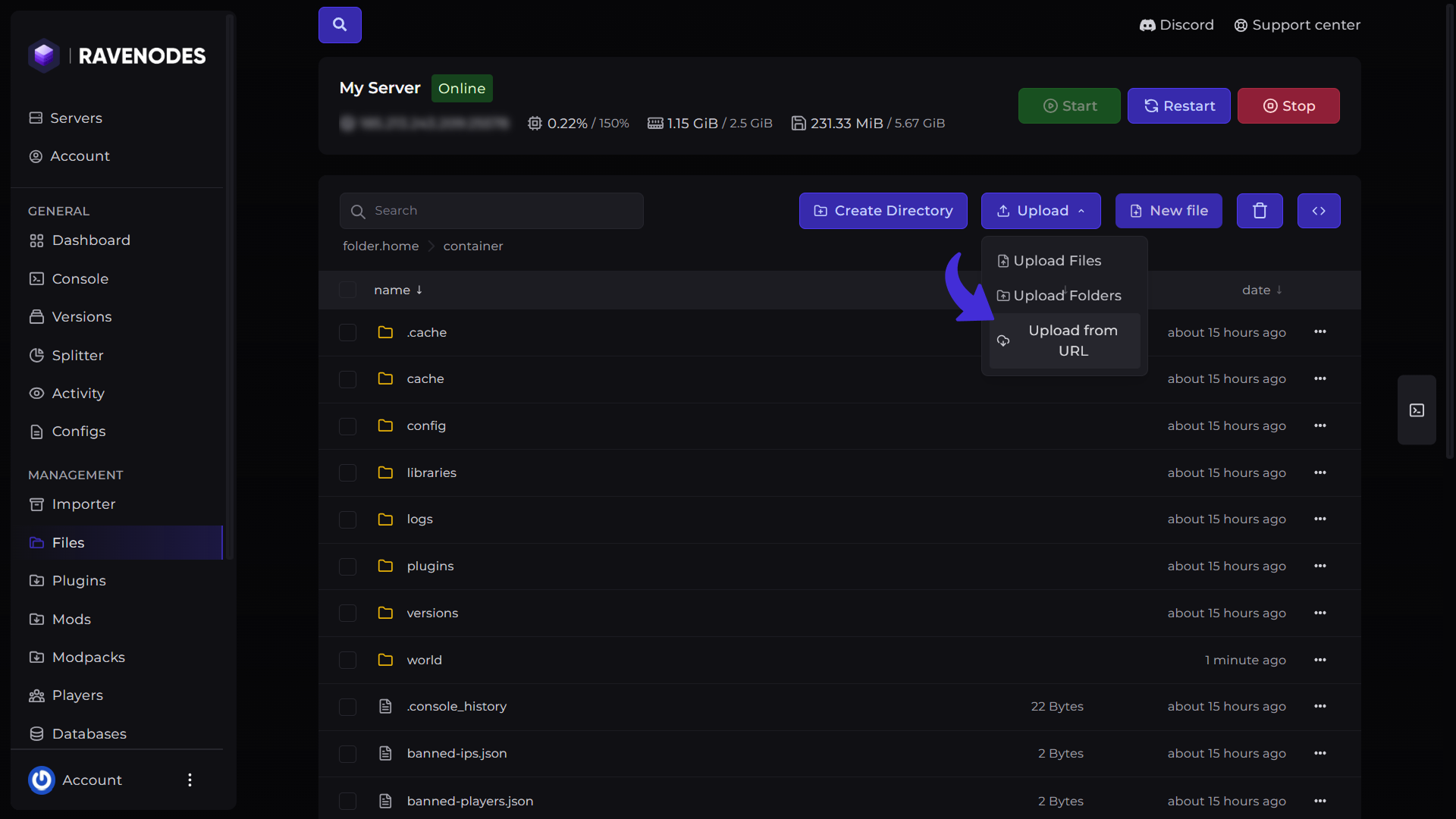
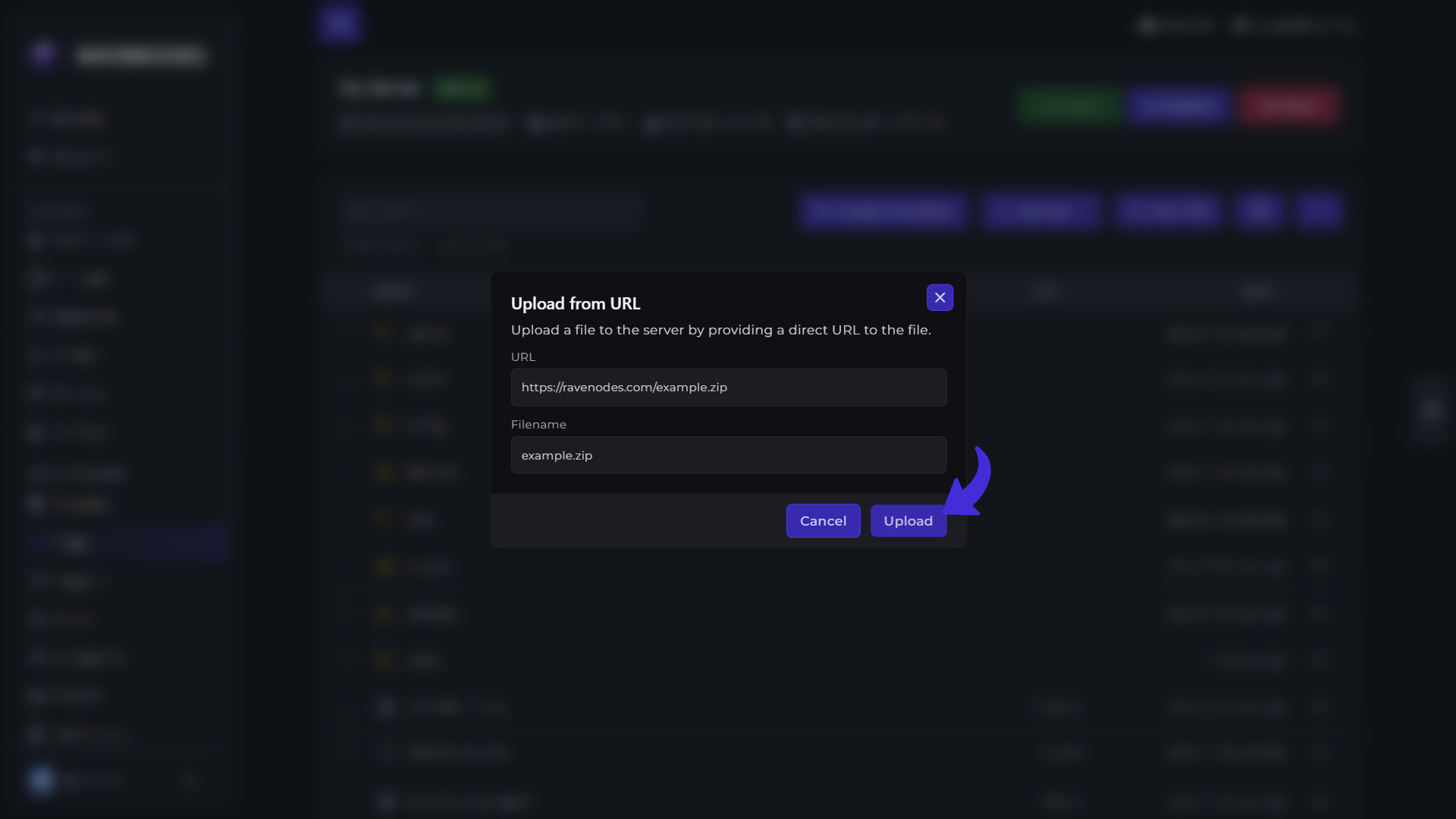
Upload Files from a URL
Instead of downloading files to your computer and uploading them again, you can import them directly from a URL.
This is especially useful for:
-
Downloading plugins from trusted websites
-
Importing configuration files
-
Installing resource packs
-
Downloading server files from a direct link
How to Use
-
Click Upload from URL.
-
Paste the direct download link.
-
Choose the destination folder if needed.
-
Click Download.
The File Manager will fetch the file directly to your server, which is often faster than uploading from your local device.
Ensure the URL points directly to the file you want to download rather than a webpage.
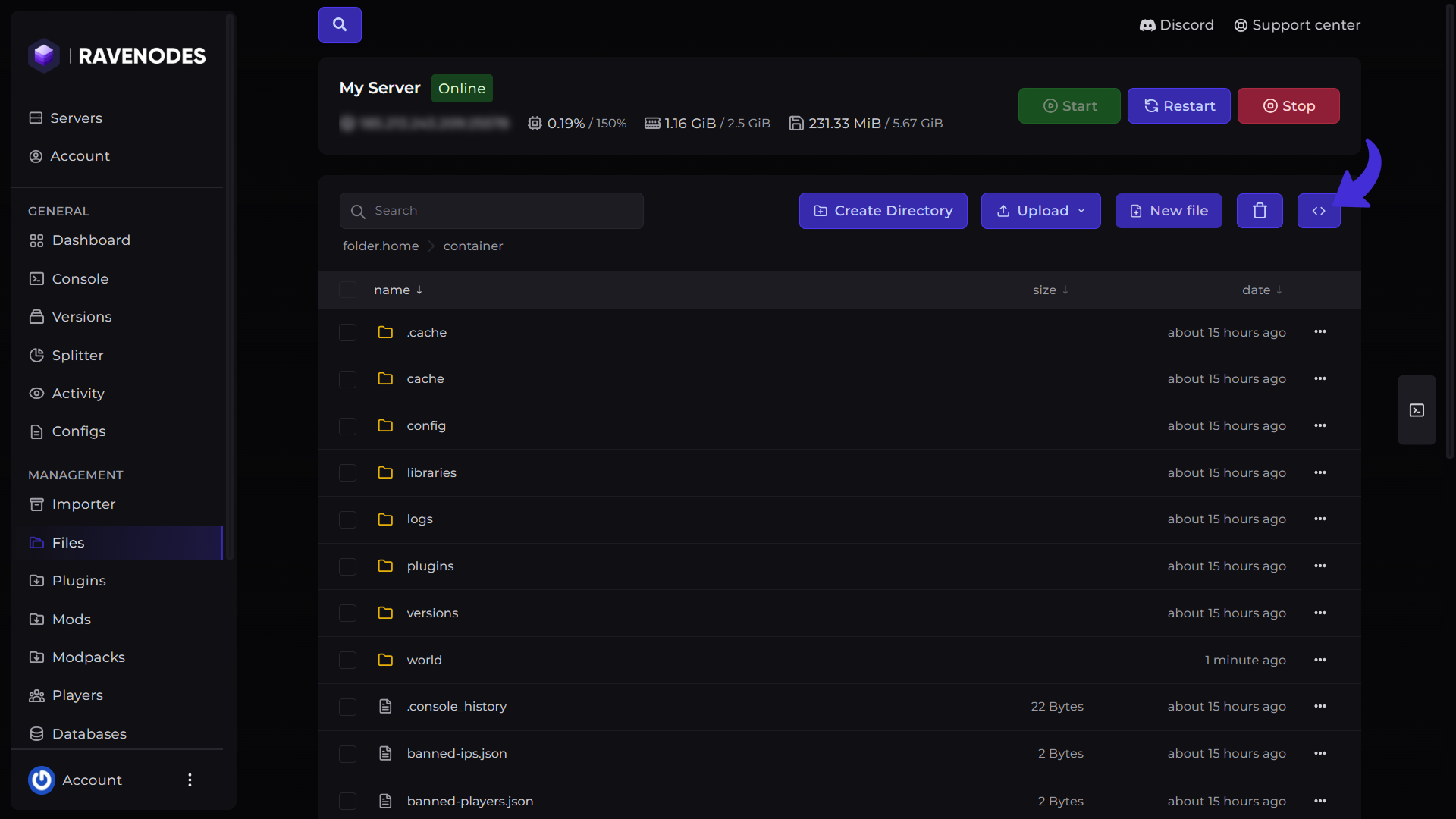
Edit Files with the Built-in Code Editor
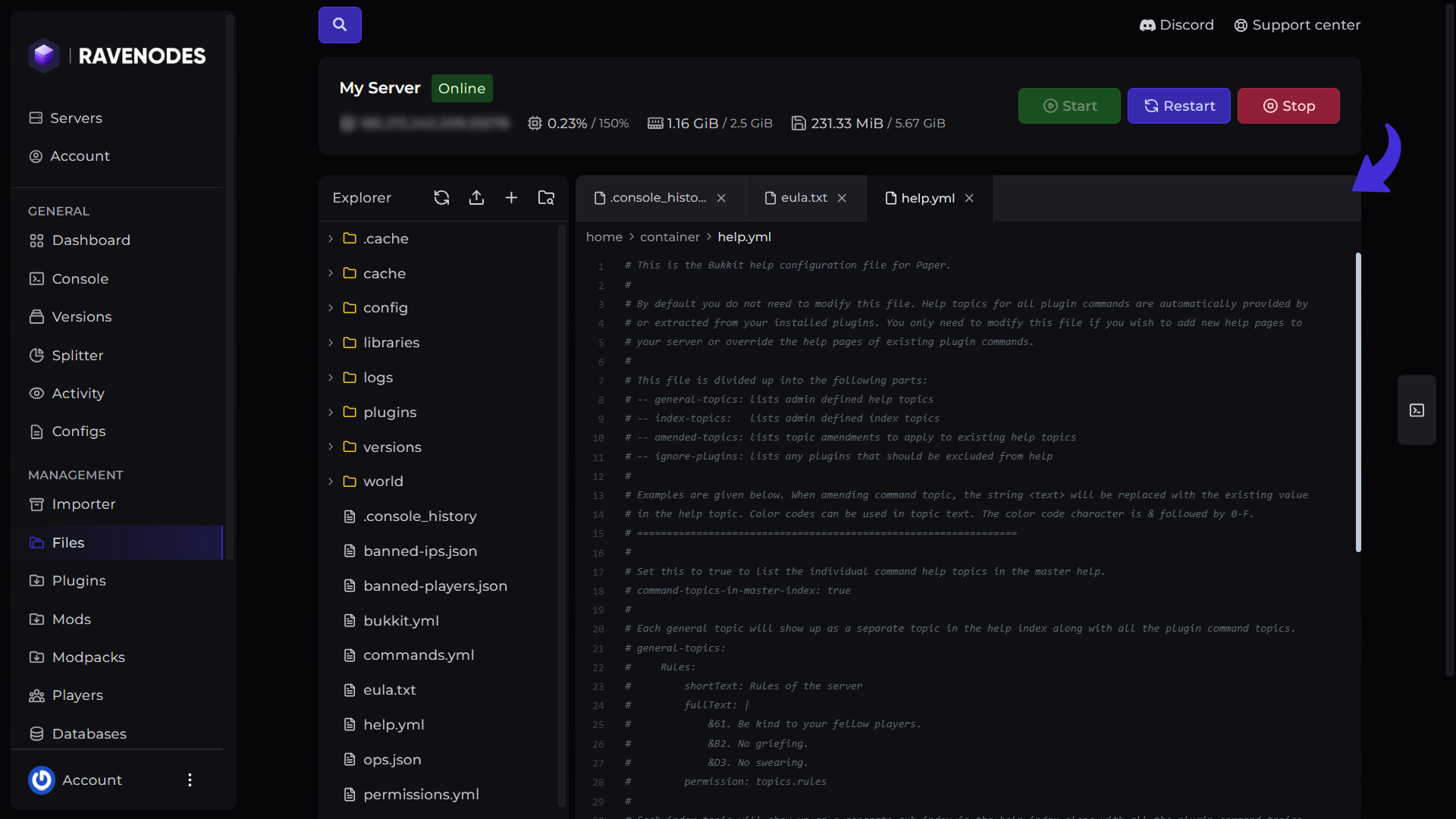
The File Manager includes a powerful built-in code editor designed for editing server files directly in your browser. Unlike basic text editors, the editor lets you work on multiple files simultaneously, making it easy to switch between files without losing your progress.
How to Edit a File
-
Navigate to the file you want to edit.
-
Click the file to open it in the editor.
-
Make your changes.
-
Open additional files in new tabs if needed.
-
Click Save to apply your changes.
Always save your work before closing the editor. Some configuration changes require a server restart before they take effect.
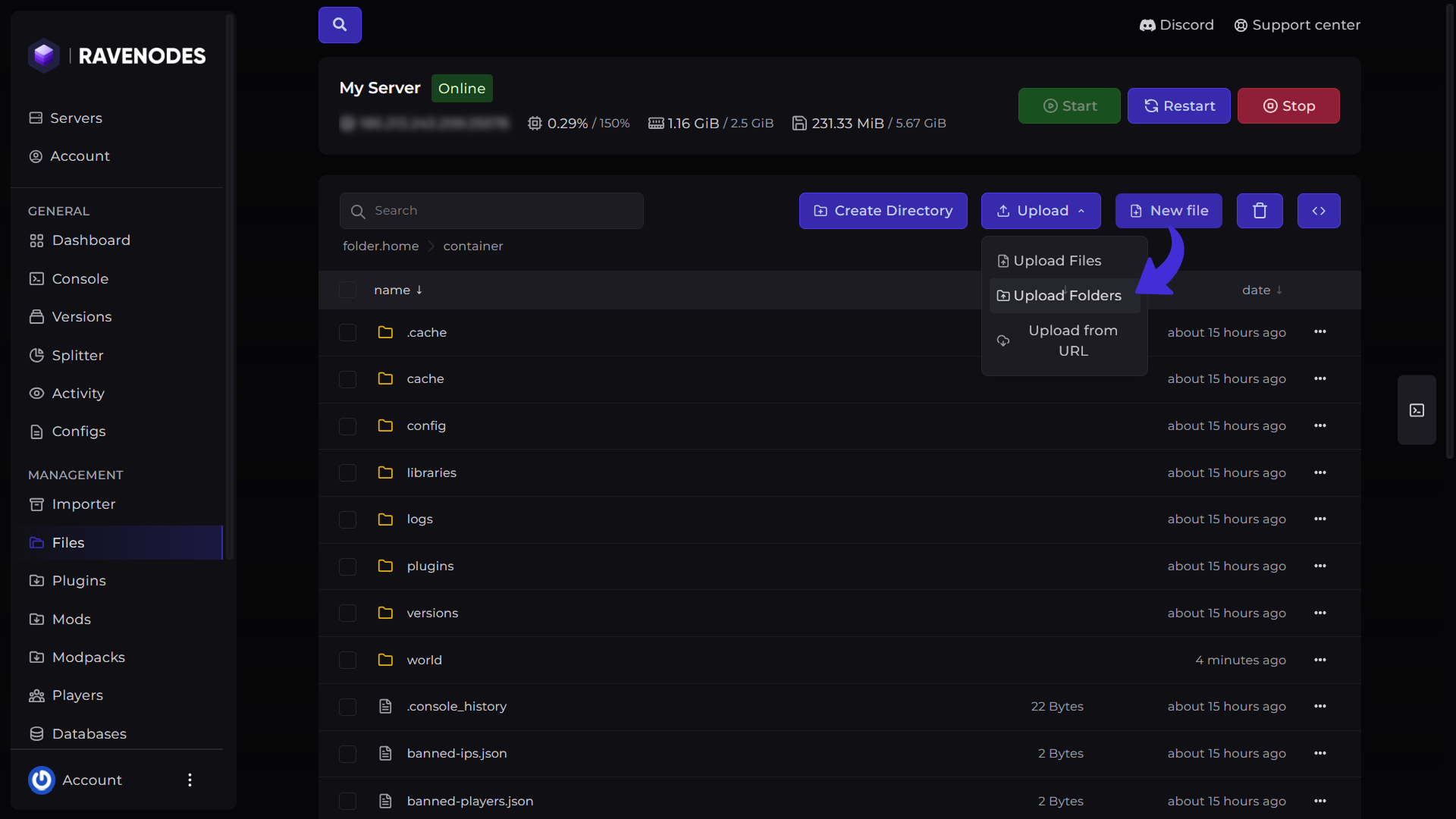
Upload Entire Folders
Need to upload a plugin, world, datapack, or modpack? The File Manager supports direct folder uploads, allowing you to upload complete directory structures while preserving all files and subfolders. This eliminates the need to compress folders into ZIP archives before uploading.
How to Upload a Folder
-
Click Upload Folder.
-
Select the folder from your computer.
-
Wait for the upload to finish.
The File Manager will recreate the folder structure automatically on your server.
Move Files and Folders
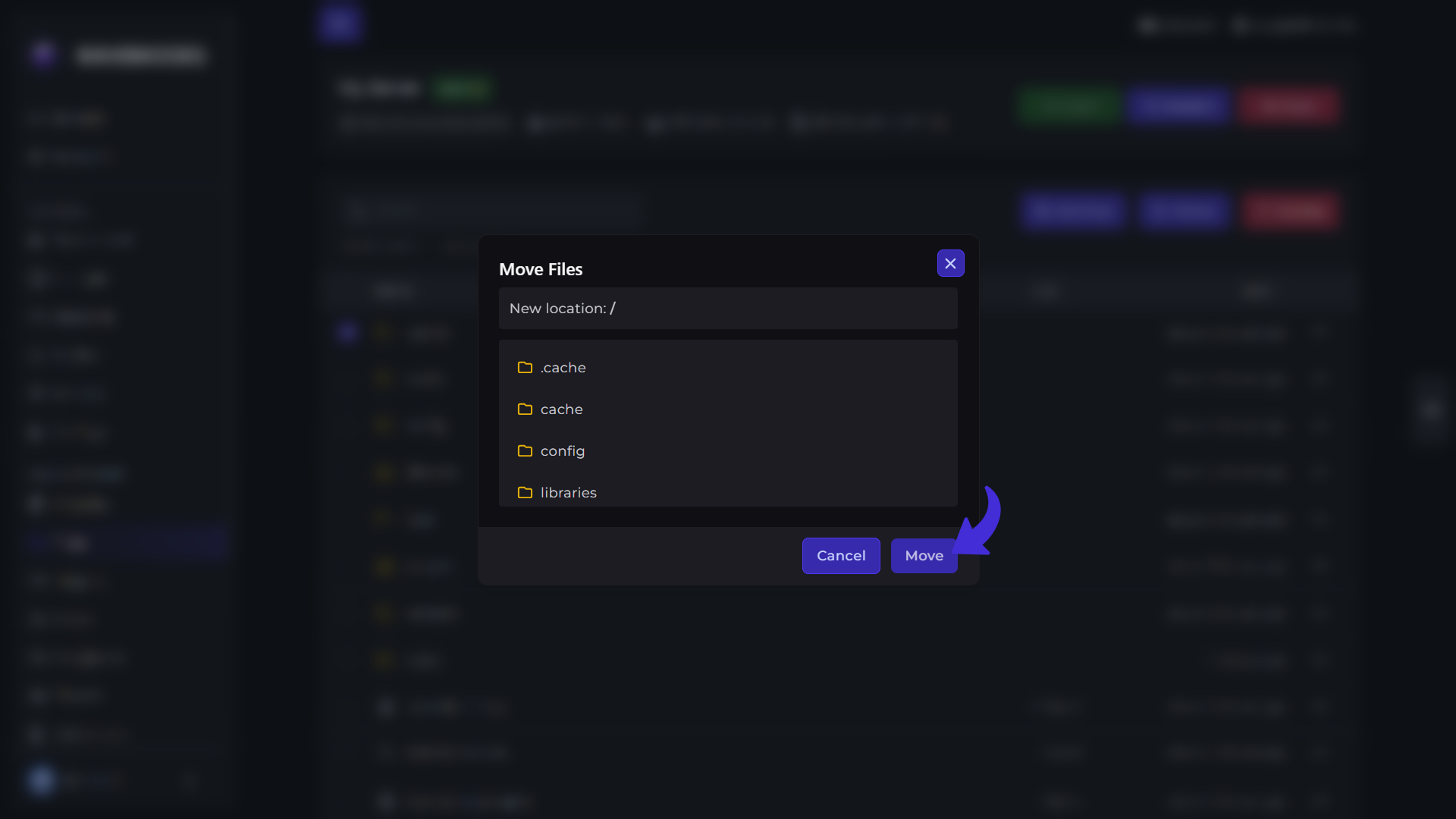
Organizing your server files is simple with the Move feature. Instead of manually downloading and re-uploading files, you can move files and folders to different locations within your server storage in just a few clicks. The File Manager will relocate the selected files without requiring you to download them first.
How to Move Files
-
Select the file or folder you want to move.
-
Choose the destination directory.
-
Verify and hit the Move button.
Additional Tips
-
Keep your files organized by using descriptive folder names.
-
Back up important files before making major changes.
-
Use the built-in code editor for quick configuration edits instead of downloading files.
-
Verify download URLs before importing files to your server.
-
Restart your server after editing configuration files when required.
Need Help?
If you encounter any issues, our support team is here to help. Open a support ticket through the Client Area, and we'll be happy to assist you.