
The Modpacks Manager makes installing and managing Minecraft modpacks easier than ever. Instead of manually downloading modpacks and uploading them to your server, you can browse popular modpack sources, install them with just a few clicks, and keep them up to date directly from your Game Panel. This guide covers everything you need to know about installing, updating, and removing modpacks.
The Modpacks Manager is designed for mod loader-based server software such as Fabric, Forge, and NeoForge. It is not intended for plugin-only server software like Paper, Purpur, Spigot, or Bukkit.
Step 1: Open Your Server
Log in to our Game Panel and head to the Minecraft server you want to modify.
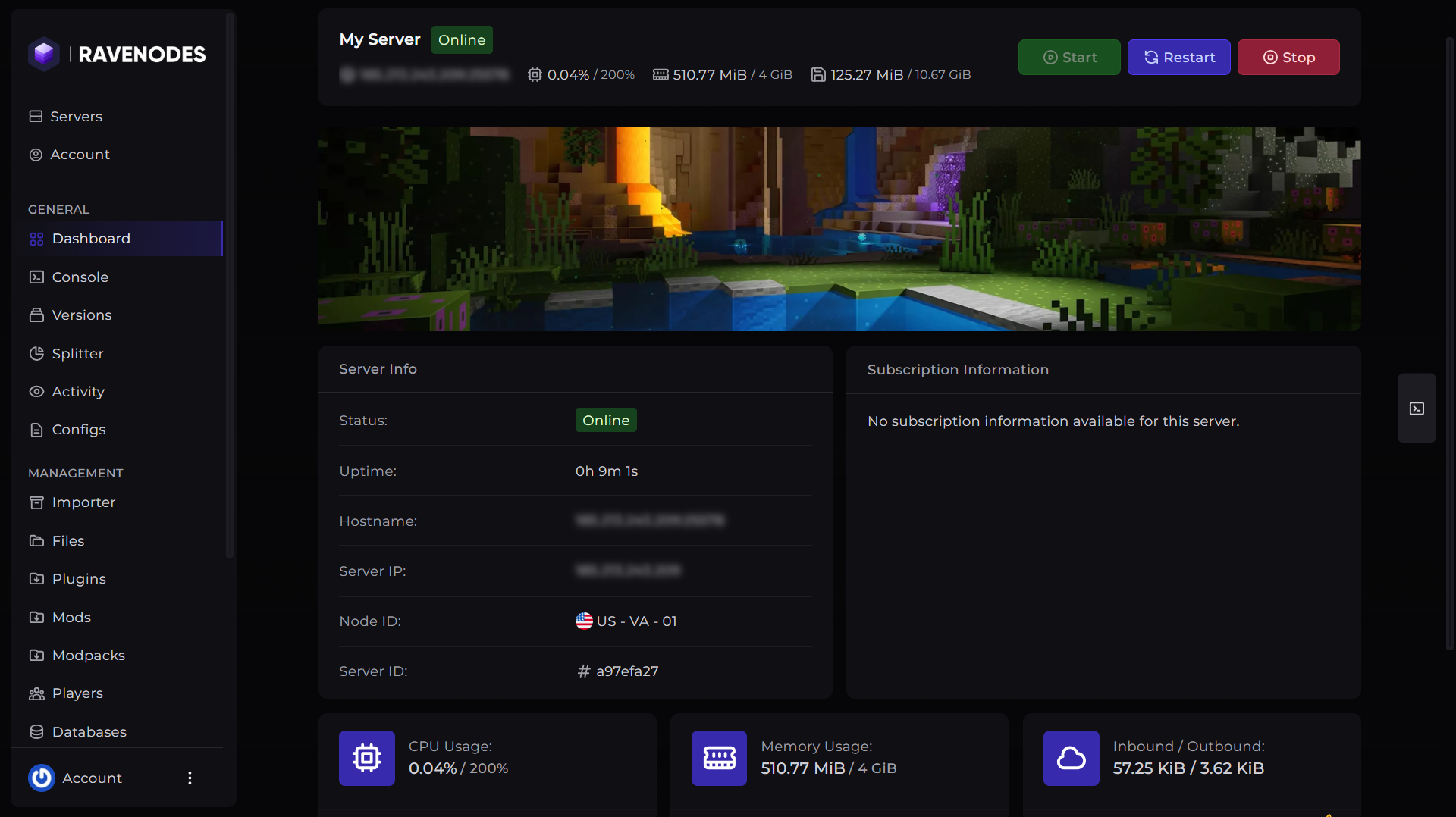
Step 2: Open Modpacks Manager
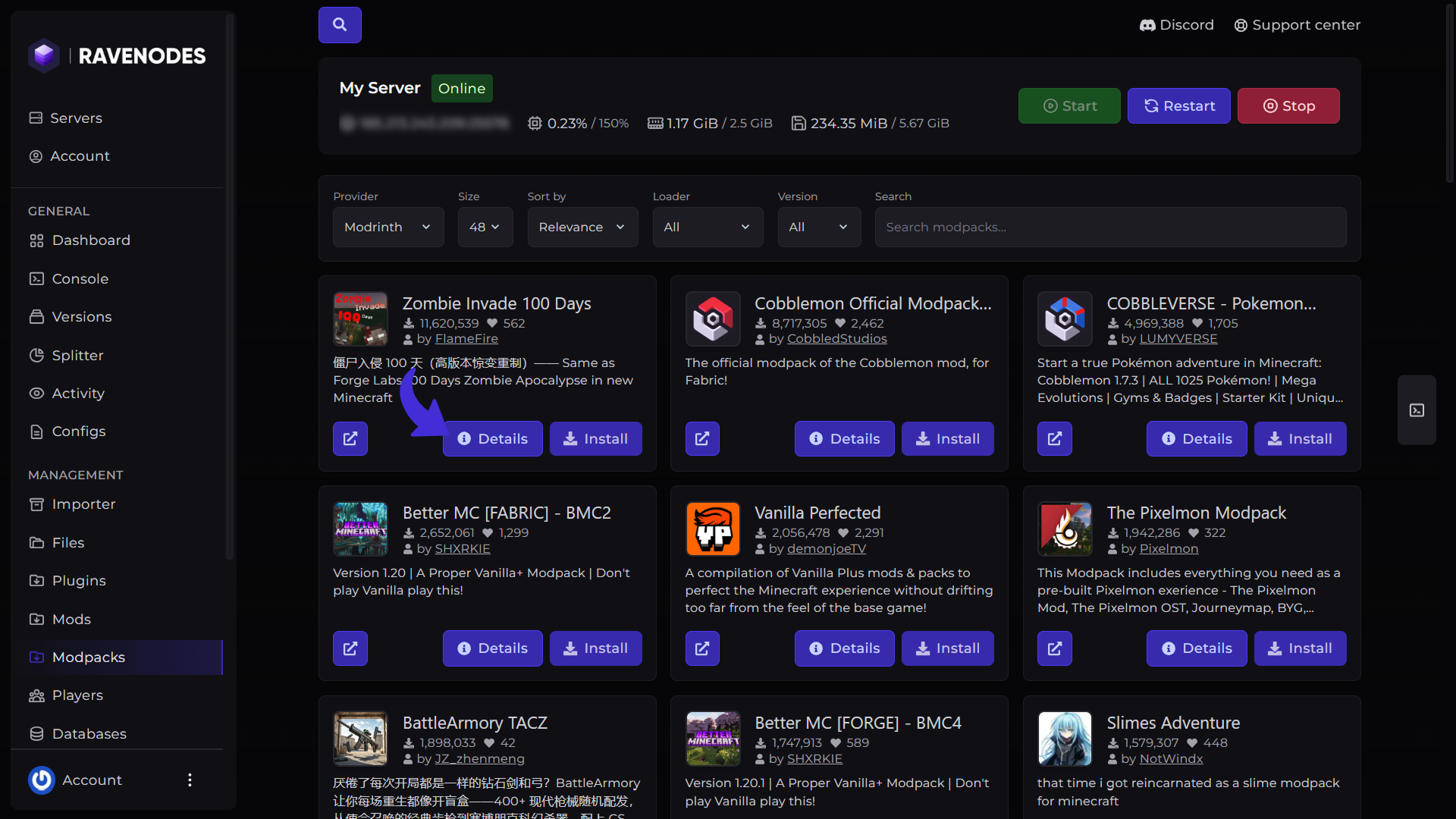
From the server navigation menu, click Modpacks. The Modpacks Manager will display a list of available modpacks from supported sources, allowing you to browse and install them without leaving your control panel.
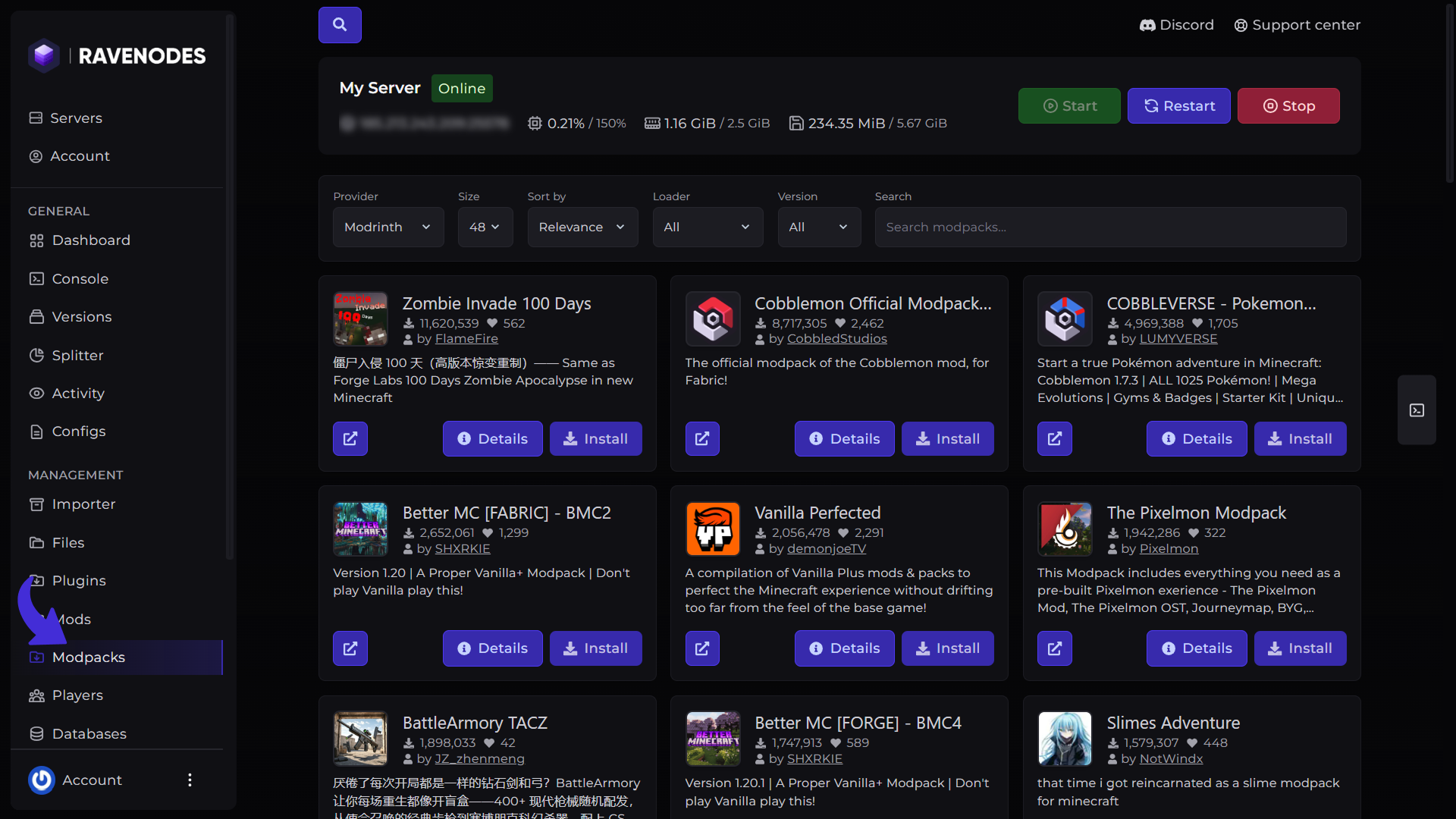
Search for Modpacks
Use the search bar to quickly find a specific modpack. Simply enter the modpack's name, provider, version, loader or a keyword, and the Modpacks Manager will display matching results from the selected sources, allowing you to browse and install them without leaving your control panel.
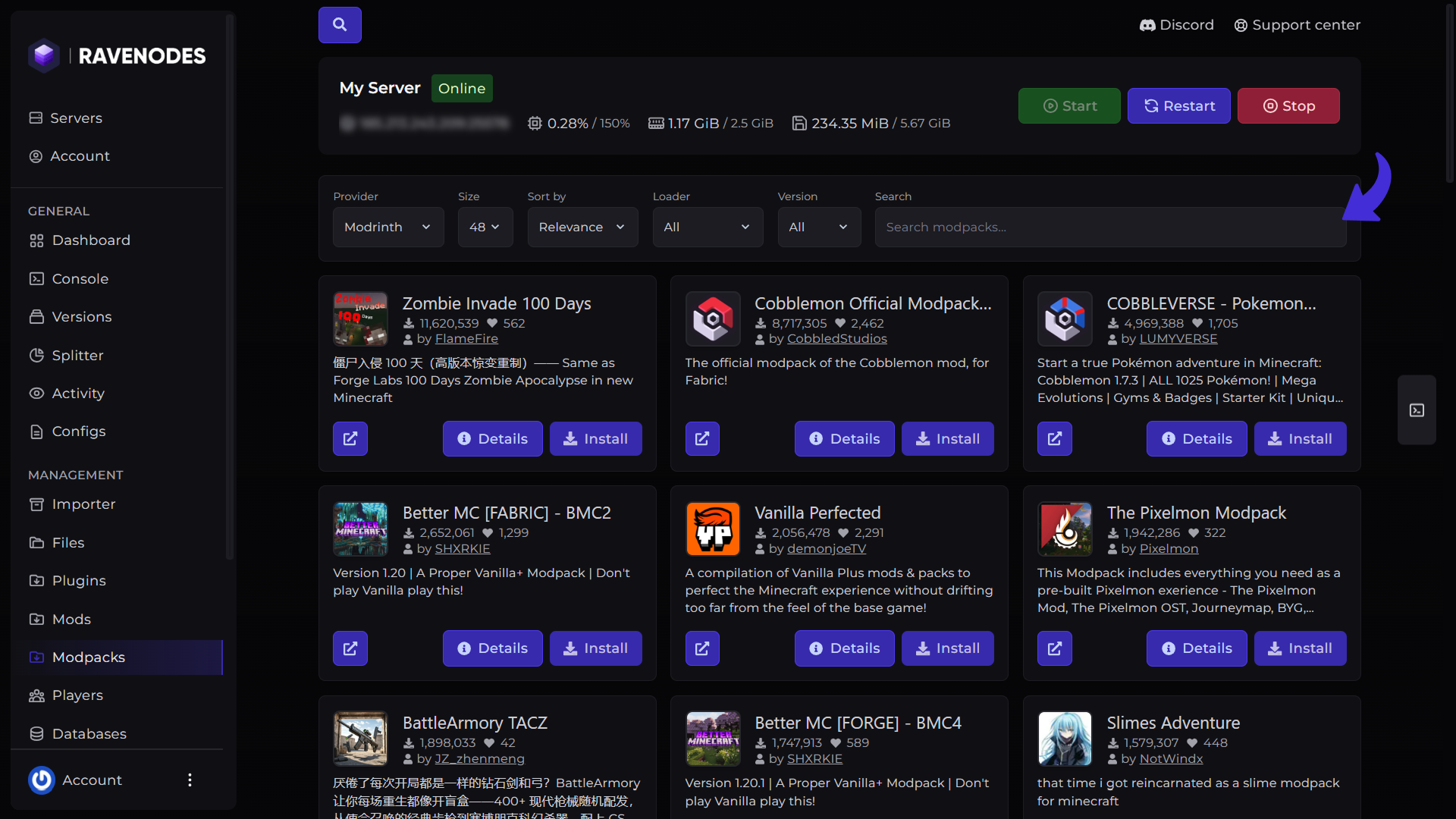
Filter and Sort Results
To make browsing easier, the Modpacks Manager includes several filtering and sorting options. These options help you quickly find plugins that are compatible with your server. You can customize your search using:
-
Results Per Page – Control how many modpacks are displayed.
-
Platform – Shows the source where modpacks is published.
-
Sort By – Sort results by relevance, popularity, downloads, latest updates, and more.
-
Provider – Filter modpacks based on the server software they support.
-
Version – The server version you're currently running (make sure to check the modpacks's compatibility).
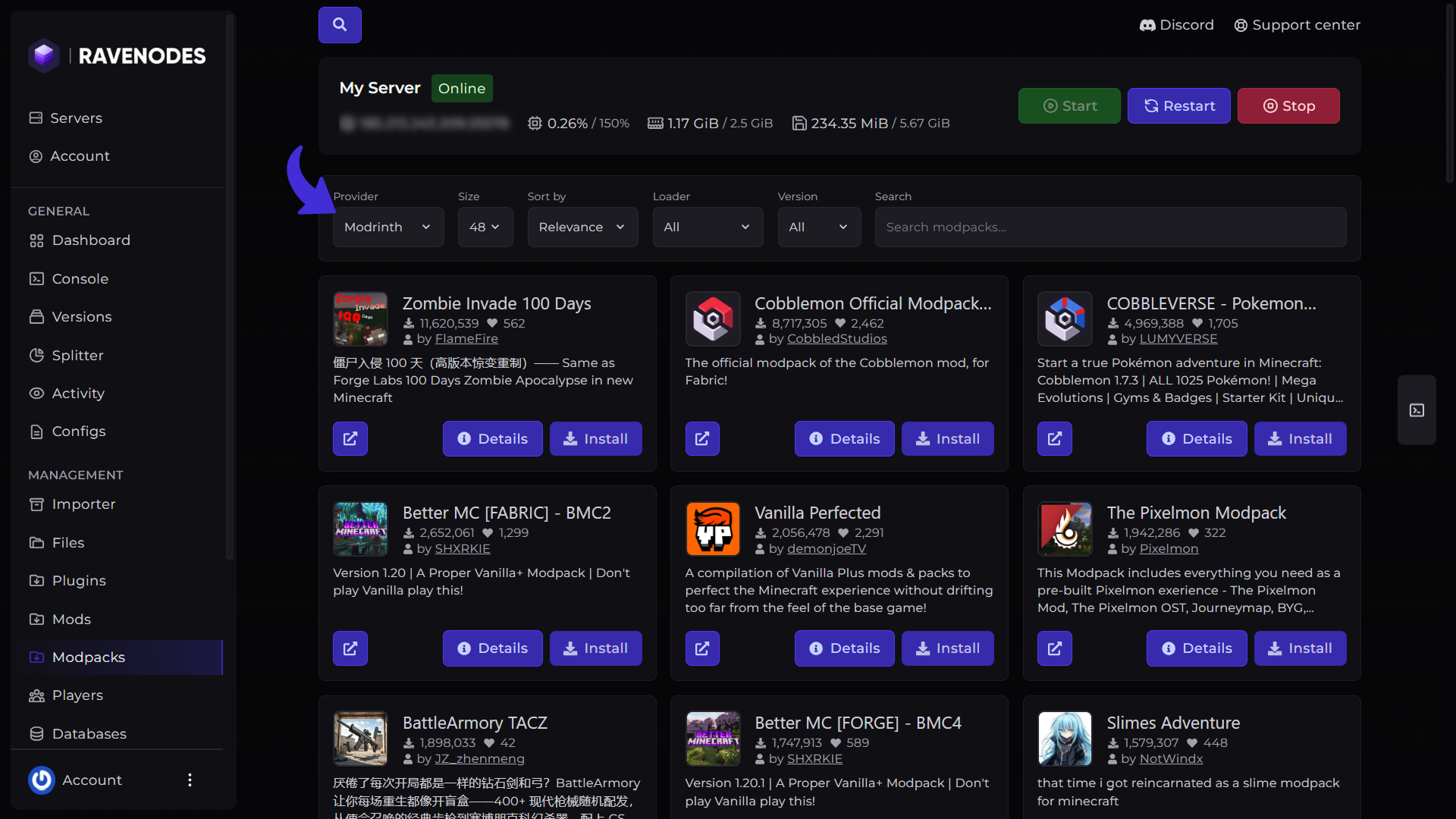
View Modpack Details
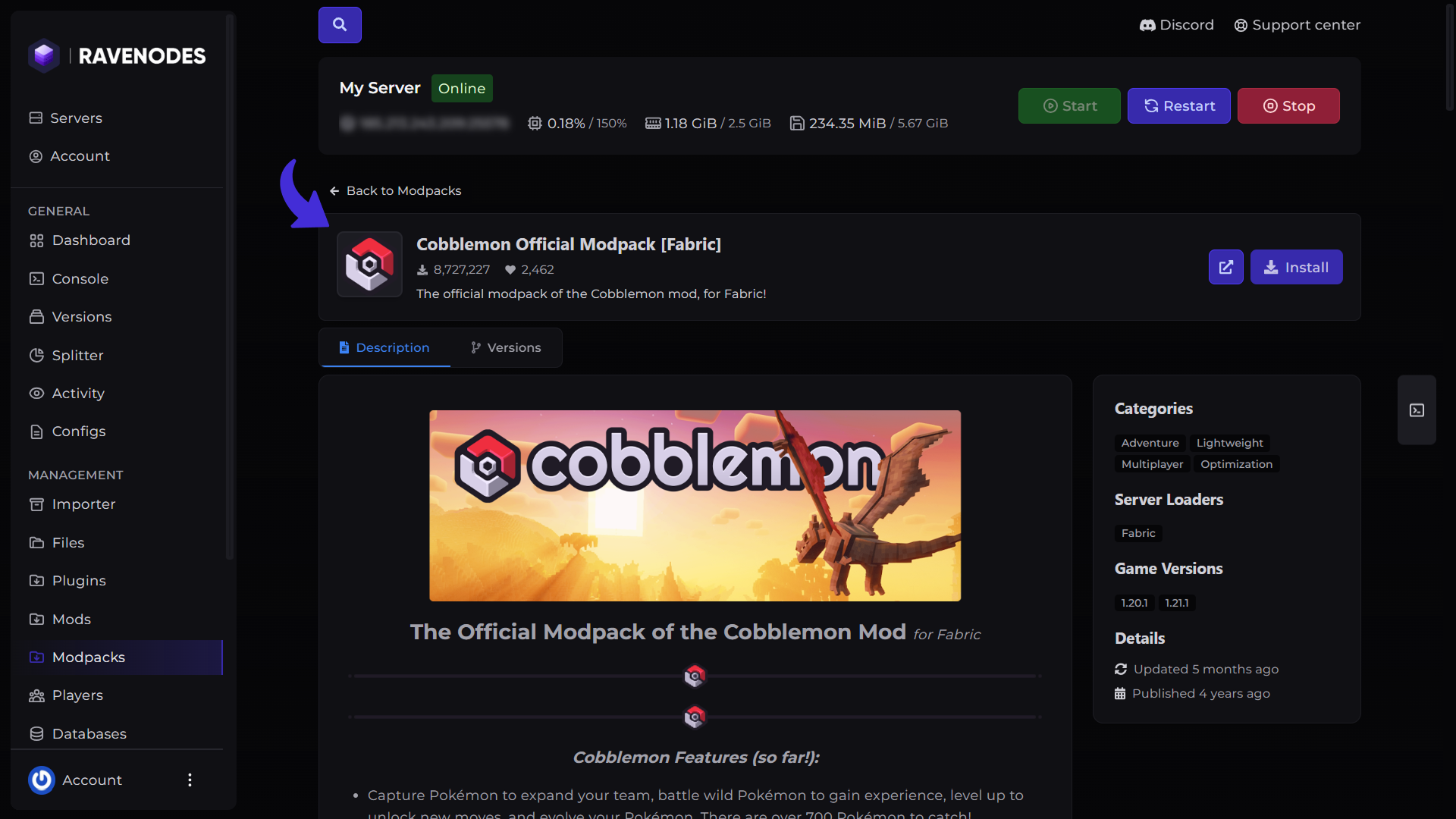
Before installing a modpack, click the Details button to view additional information.
The details page includes:
-
Modpack description
-
Supported Minecraft versions
-
Available modpack versions
-
Modpack category
-
Supported mod loader
Review these details to ensure the modpack is compatible with your server before installing it.
Install a Modpack
Once you've found the modpack you want to install:
-
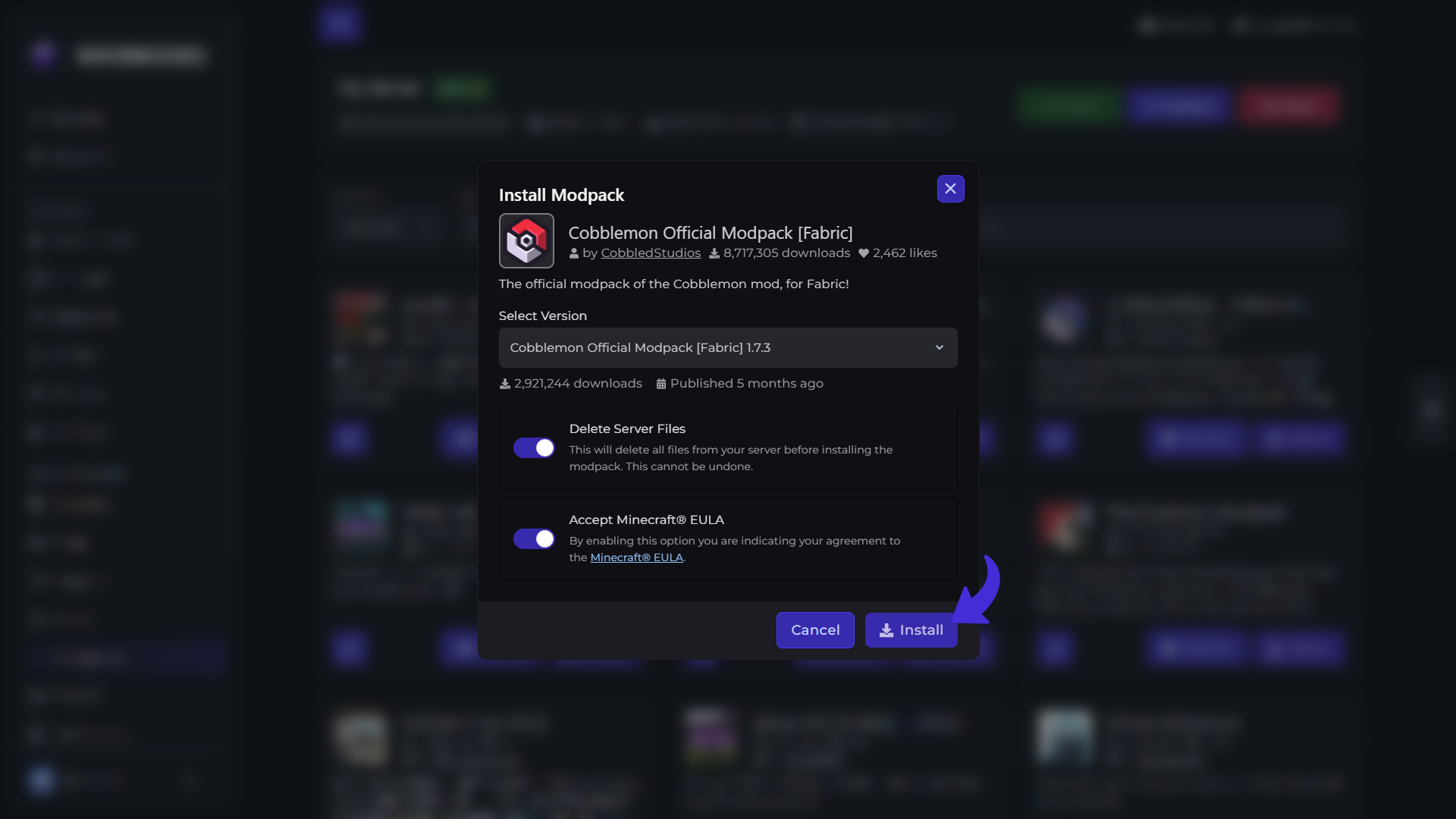
Click Install.
-
A dialog will appear allowing you to choose the modpack version.
-
Select your preferred version.
-
Click Install again to begin the installation.
The Modpacks Manager will automatically download and install the selected version onto your server.
Some modpacks may take several minutes to install depending on their size. If you're installing a new modpack we recommend checking the Delete Server Files option.
Tips
-
Always verify that the modpack supports your Minecraft version before installing it.
-
Ensure your server is using the correct mod loader (Fabric, Forge, or NeoForge).
-
Restart your server after installing, updating, or removing a modpack.
-
Keep your modpacks updated for improved compatibility, bug fixes, and new features.
-
Always create a backup before installing or updating a modpack.
-
Some modpacks also have incompatible mods that's not a mistake from host.
Need Help?
If you encounter any issues, our support team is here to help. Open a support ticket through the Client Area, and we'll be happy to assist you.