
Recycle Bin adds an extra layer of protection for your Minecraft server files. Instead of immediately deleting files, you can move them to the Recycle Bin, allowing you to restore them later if needed. Whether you accidentally delete a plugin, configuration file, or even an entire world, the Recycle Bin makes recovery quick and easy.
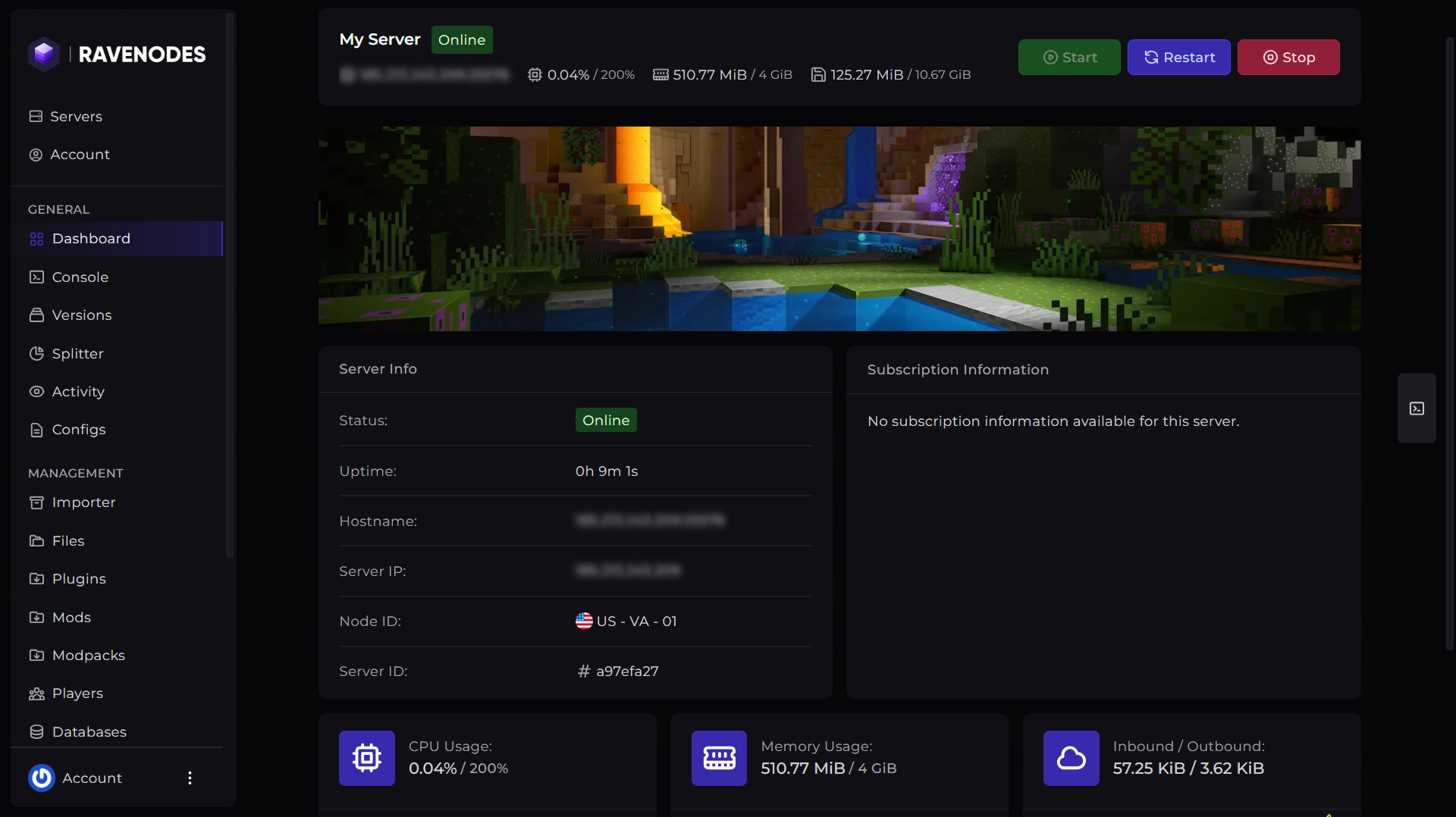
Step 1: Open Your Server
Log in to our Game Panel and head to the Minecraft server you want to modify.
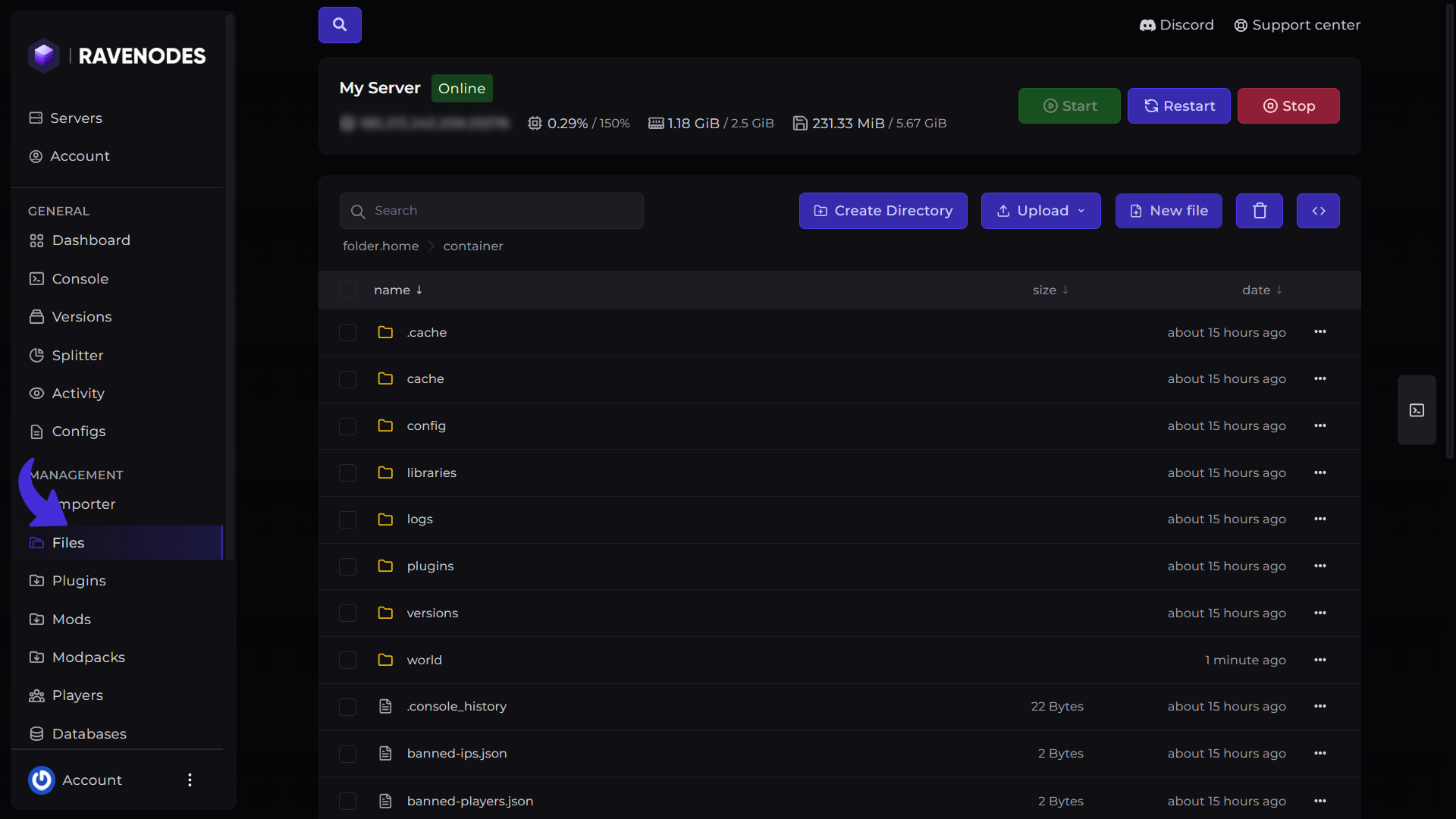
Step 2: Open File Manager
From the server navigation menu, click Files, The File Manager will appear and display all of your available files and folders.
Moving Files to the Recycle Bin
When deleting a file or folder from the File Manager, you'll be presented with a confirmation dialog. You can select the Delete Permanently button or use Move to Trash. The selected file or folder will be removed from your File Manager and placed into the Recycle Bin, where it can be restored later if needed.
Using Move to Trash is the safest option whenever you're unsure if you'll need the file again.

Opening the Recycle Bin
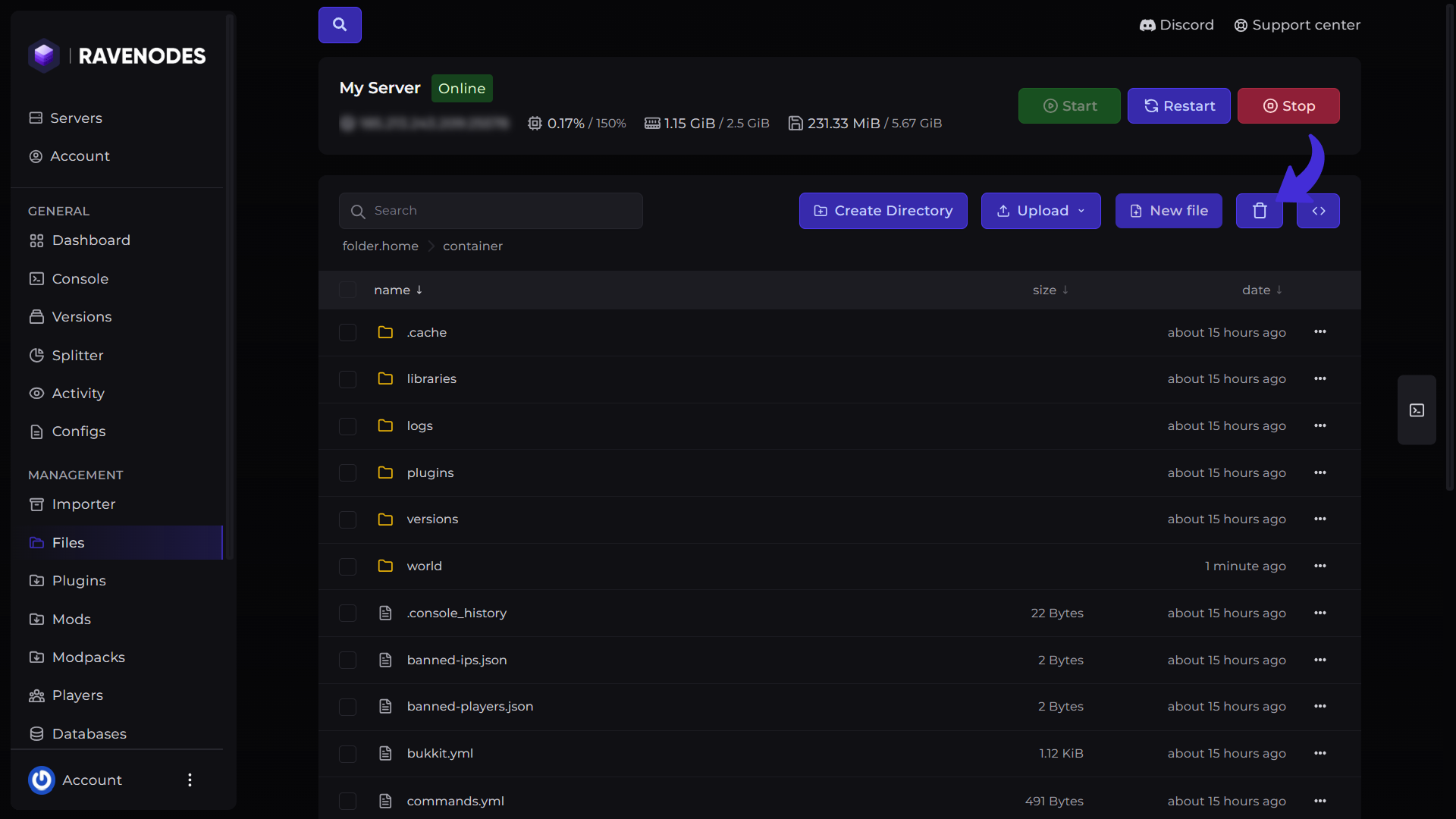
Inside the files manager a trash icon will appear on the top menu of the Files Manager.
Restoring Deleted Files
Recovering your files only takes a few clicks.
-
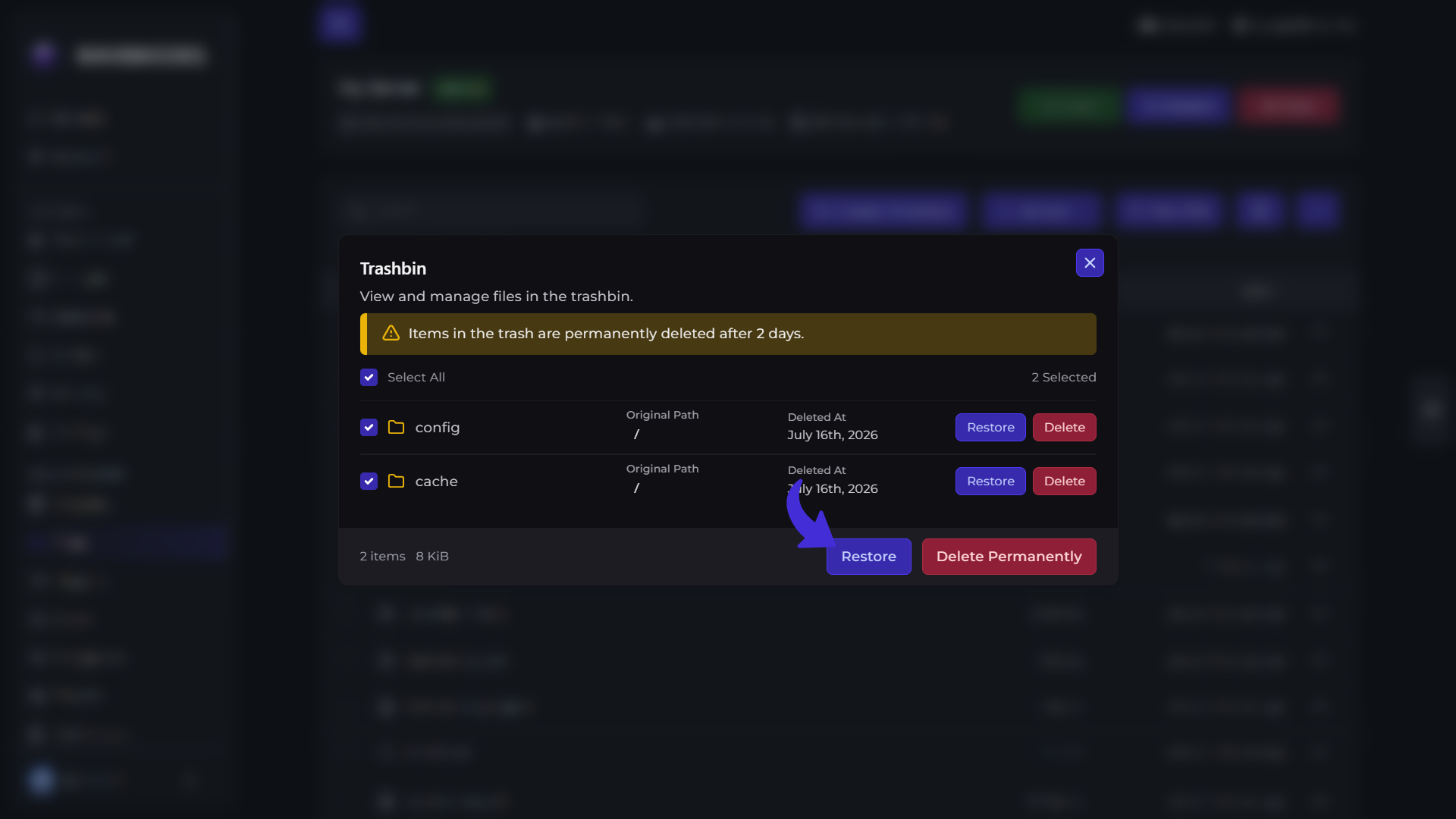
Open the Recycle Bin.
-
Select the file or folder you want to restore.
-
You can restore a single file.
-
Or use Select All to restore everything in the Recycle Bin.
-
-
Click Restore.
-
Wait a few moments while your files are restored.
Once the process is complete, the selected files will be returned to their original locations.
Permanently Deleting Files
If you're certain you no longer need a file, you can permanently remove it instead of moving it to the Recycle Bin.
When deleting a file from the File Manager, the confirmation dialog allows you to choose whether to:
-
Move to Trash
-
Delete Permanently
Choosing Delete Permanently removes the file immediately without placing it in the Recycle Bin.
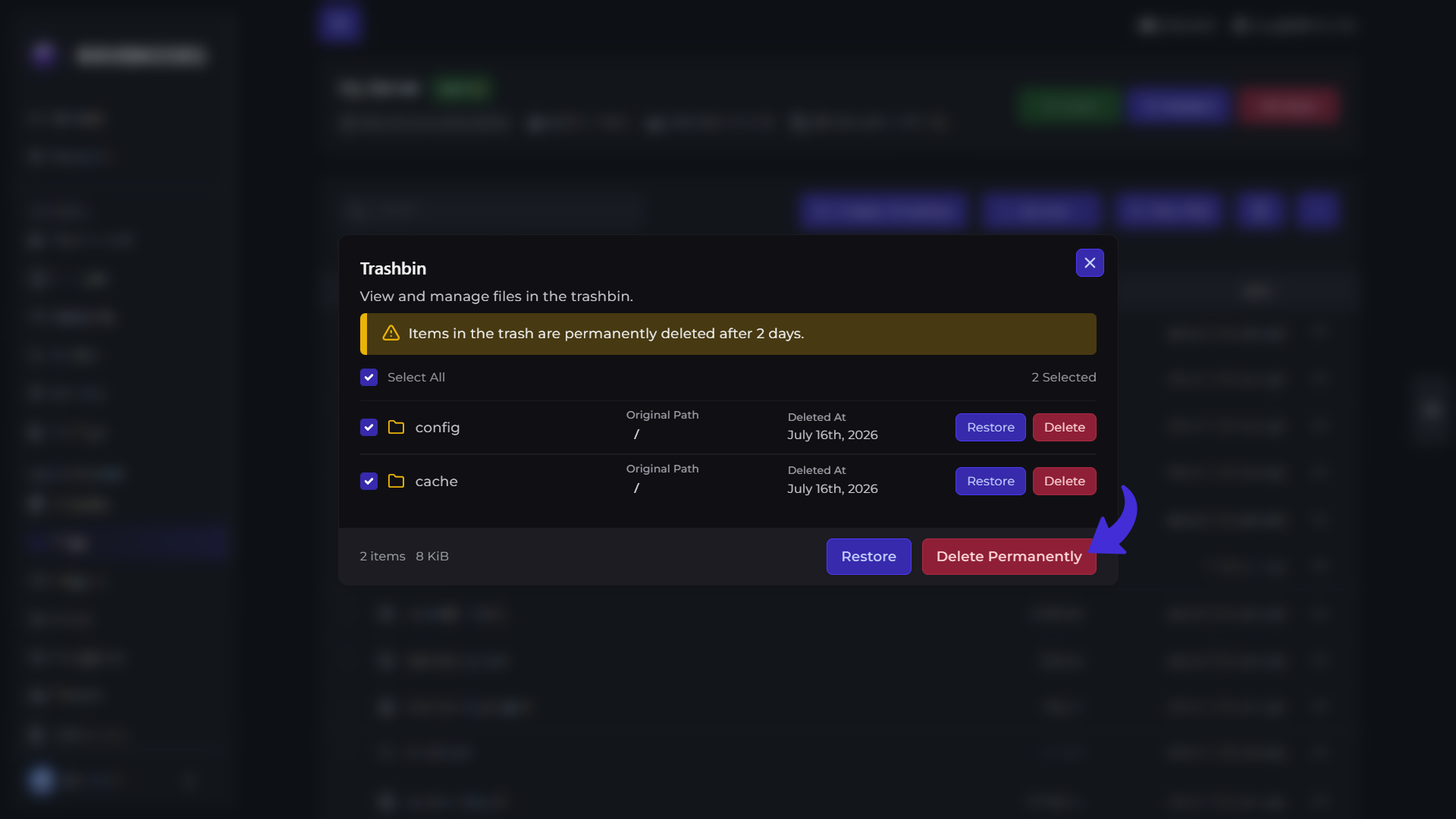
You can also permanently delete files that are already inside the Recycle Bin.
Simply:
-
Open the Recycle Bin.
-
Select one or more files.
-
Click Delete Permanently.
-
Confirm the action.
Permanently deleted files cannot be recovered unless you have a backup.
Additional Tips
-
Use Move to Trash whenever possible to avoid accidental data loss.
-
You can restore individual files or multiple files at once using Select All.
-
Wait for the restore process to complete before leaving the page.
-
Create regular backups of your server for additional protection.
Need Help?
If you encounter any issues, our support team is here to help. Open a support ticket through the Client Area, and we'll be happy to assist you.