
Config Editor lets you edit your Minecraft server's most common configuration files through a simple settings interface no need to browse files or edit YAML manually. Whether you're changing your server's MOTD, difficulty, view distance, or Paper settings, you can make changes in just a few clicks.
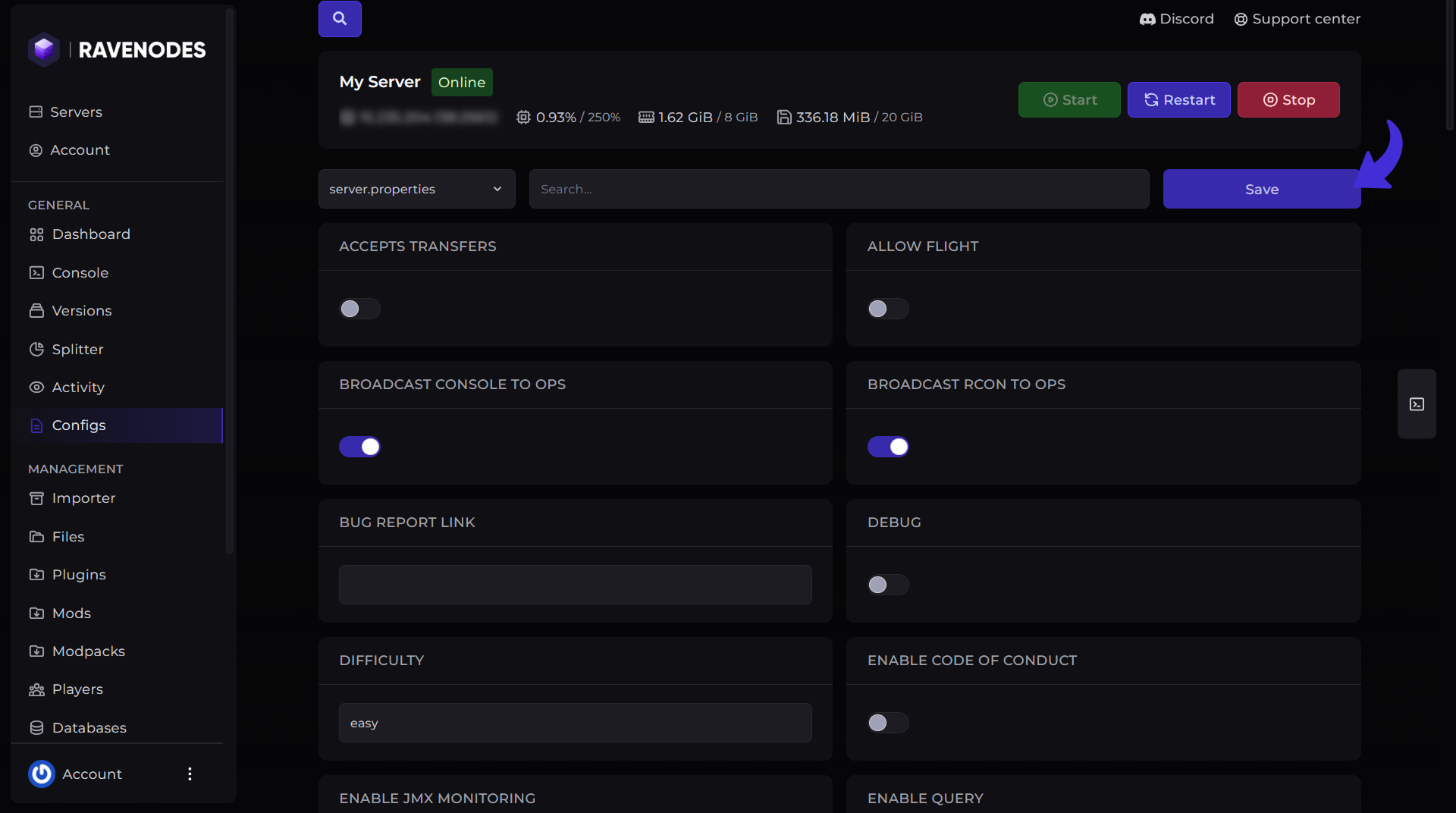
After making any changes, you must click the Save button to apply them. Some settings also require a server restart before they take effect.
Supported Configuration Files
The Config Editor supports many popular Minecraft configuration files, including:
-
server.properties
-
bukkit.yml.
-
spigot.yml.
-
paper-global.yml.
-
config/paper-world-defaults.yml.
-
Other supported files by other forks or mods.
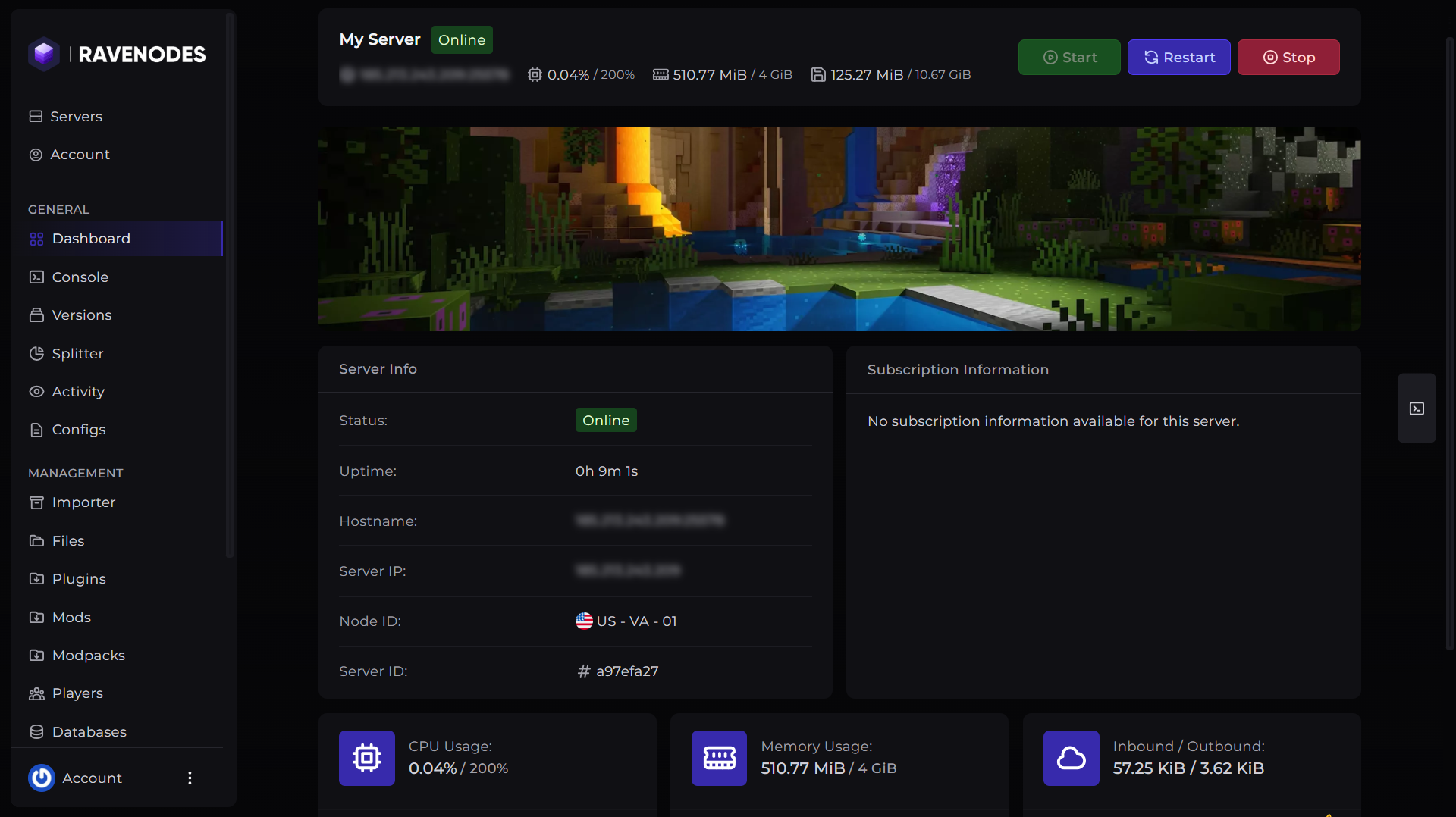
Step 1: Open Your Server
Log in to our Game Panel and head to the Minecraft server you want to modify.
Step 2: Open the Config Editor
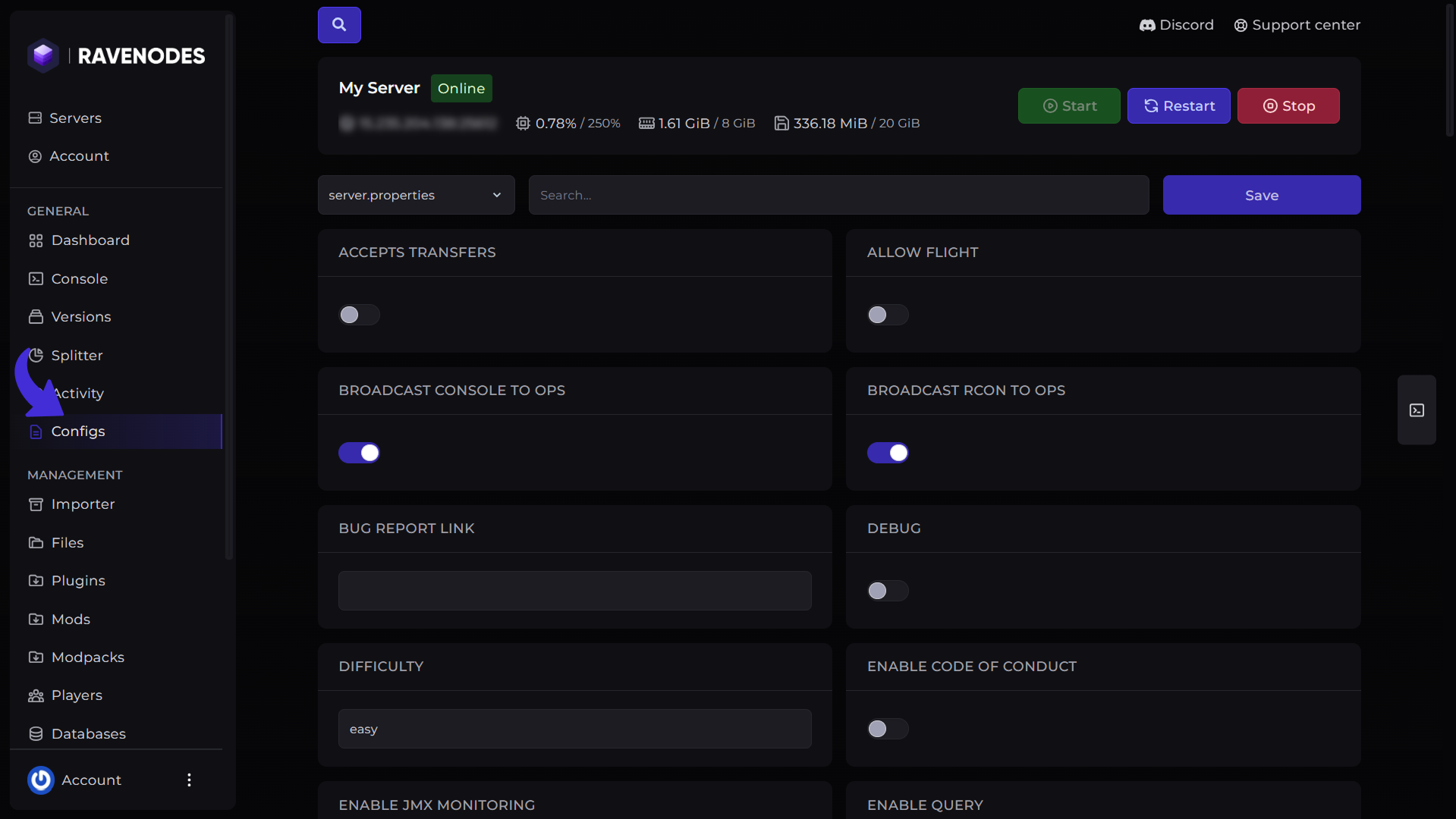
From the server navigation menu, click Configs, The Config Editor will display all supported configuration files available for your server. Please note that the configuration files may take some time to load (it depends on your latency with the backend server).
Step 3: Select a Configuration File
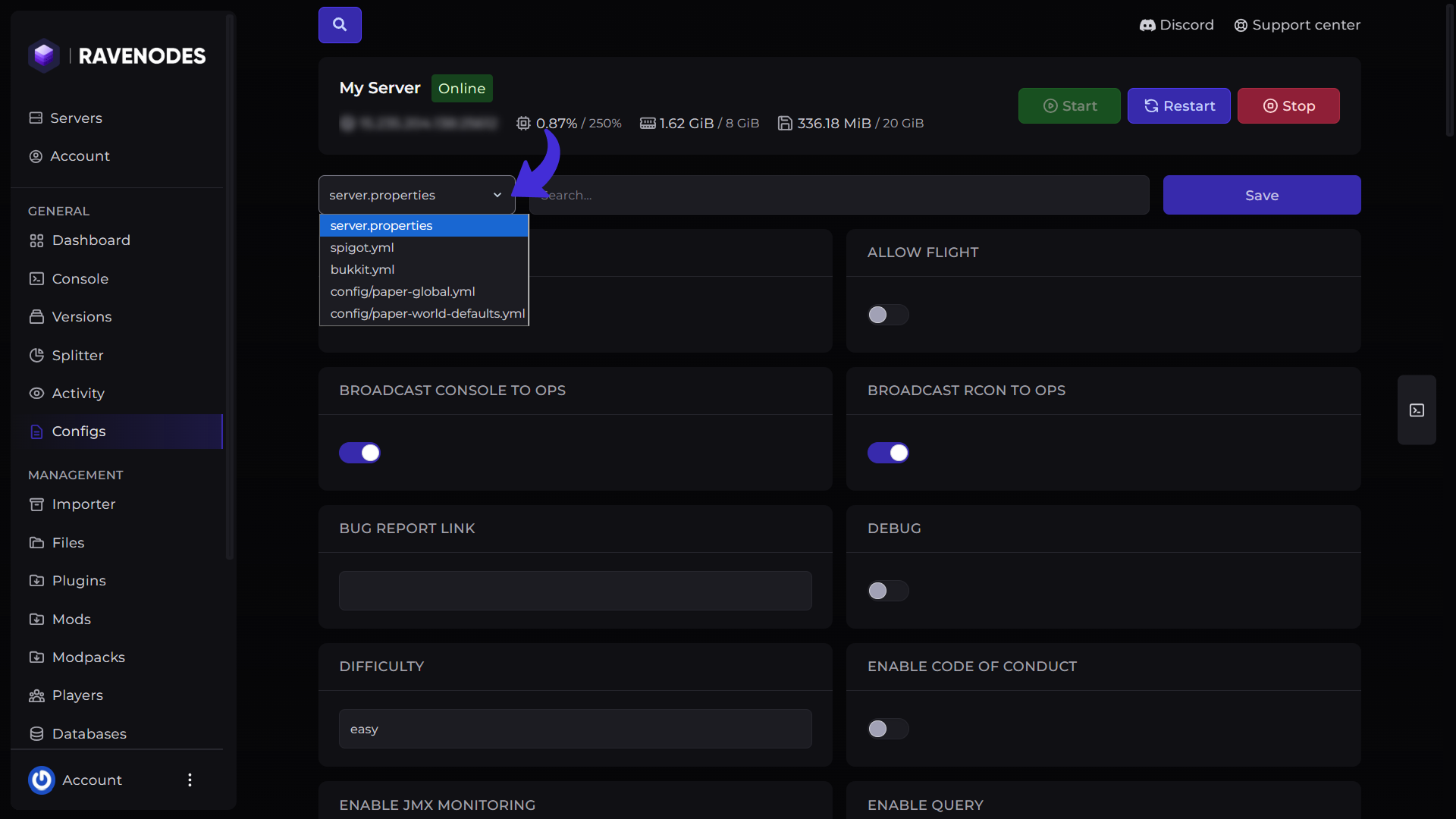
Choose the file you want to edit from the dropdown such as server.properties, bukkit.yml, spigot.yml (It displays the files depending on fork we used paper for the demonstration). Once selected, the available options will appear as editable fields, switches, dropdown menus, or number inputs.
Step 4: Modify Your Settings
Modify the files settings according to your requirements and git the Save button. The Config Editor will validate your input, making it easier to edit settings without worrying about formatting errors.
Step 5: Restart Your Server (If Required)
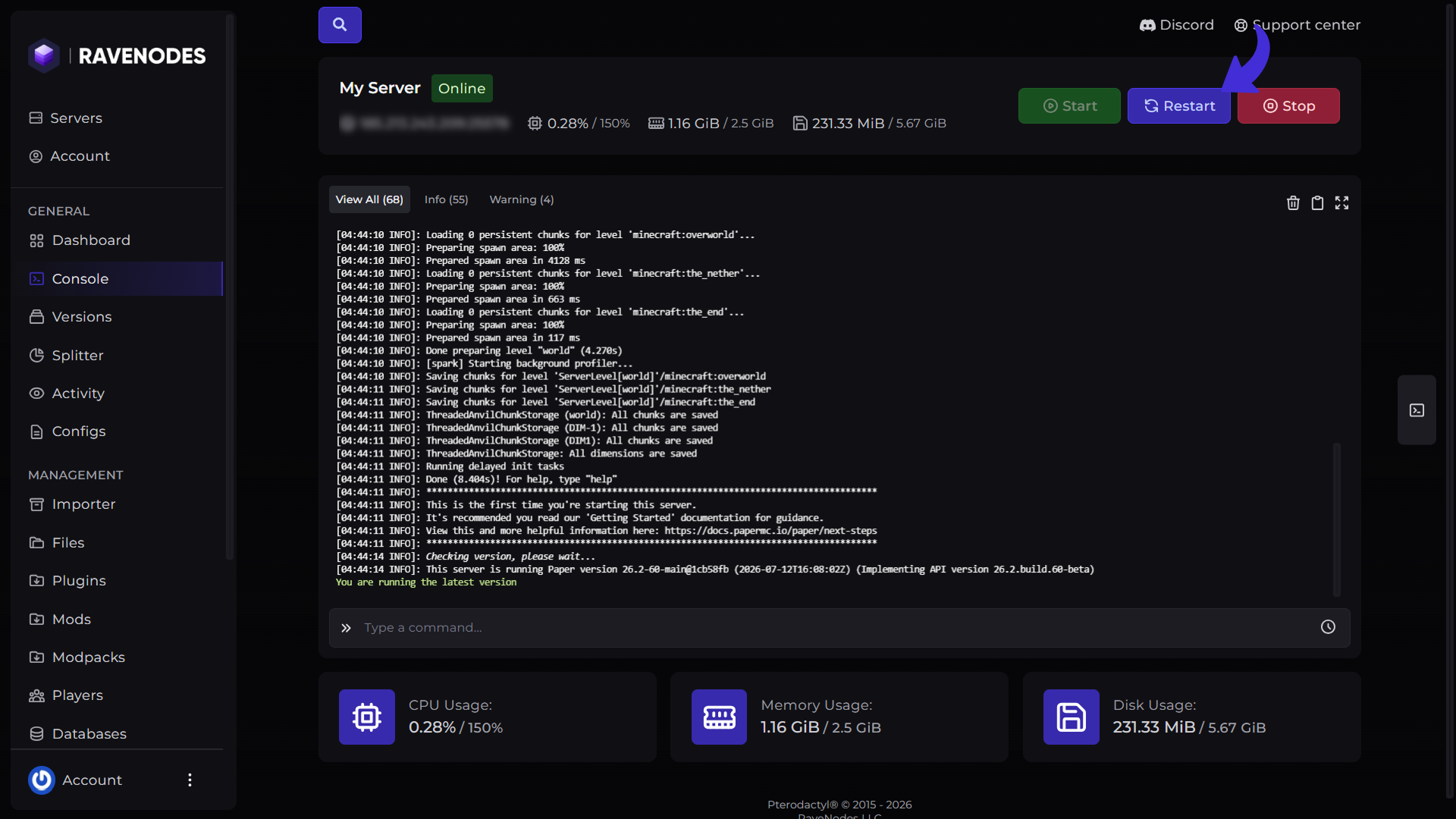
Many configuration changes only take effect after restarting your server. Return to the Dashboard or Console and click Restart. Once the server is back online, your new settings will be active.
Tips
-
Always click Save before leaving the page.
-
Restart your server after editing configuration files unless the setting specifically supports live reloading.
-
Only modify settings you understand, as incorrect values may affect gameplay or server performance.
-
Consider creating a backup before making major configuration changes.
Need Help?
If you encounter any issues while editing files of your server, our support team is here to help. Open a support ticket through the Client Area, and we'll be happy to assist you.