
Introduction
The whitelist is a simple way to control who can join your Minecraft server. When it's enabled, only players whose usernames are on the whitelist can connect. Anyone who isn't on the list will be prevented from joining.
There are several ways to add players to the whitelist. You can do it using in-game commands, through the server console, or directly from the Player Manager in your Game Panel.
This guide covers all three methods.
What Is a Whitelist?
A whitelist is a security feature built into Minecraft that limits access to approved players only. It's commonly used on private servers, SMPs, and community servers to prevent unwanted players from joining.
If whitelist mode is disabled, anyone who knows your server address can connect unless they're banned.
Method 1: Whitelisting Players In-Game
If you're an operator (OP) on the server, you can manage the whitelist directly from the Minecraft chat.
Add a Player
Run the following command:
/whitelist add PlayerName
Replace PlayerName with the Minecraft username of the player you want to allow.
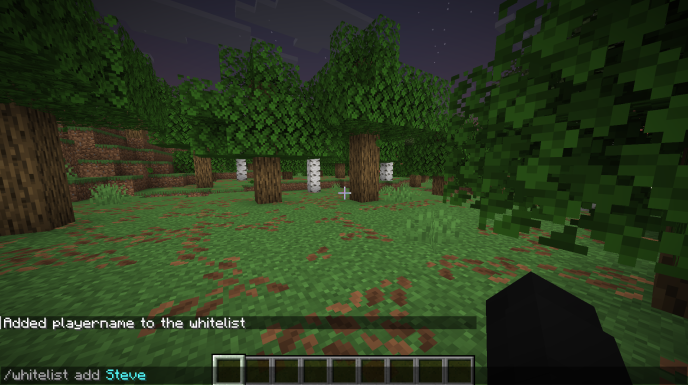
Example:
/whitelist add Steve
Remove a Player
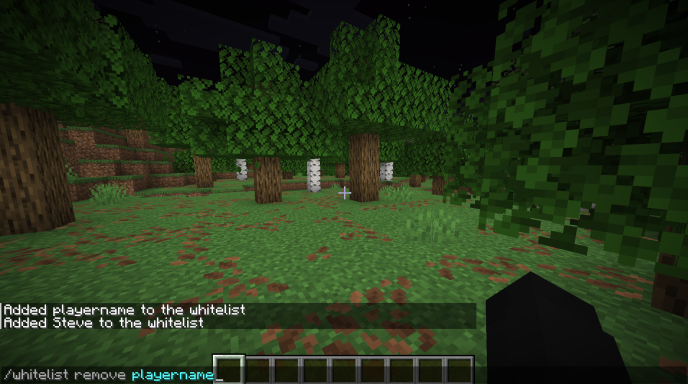
/whitelist remove PlayerName
View All Whitelisted Players
/whitelist list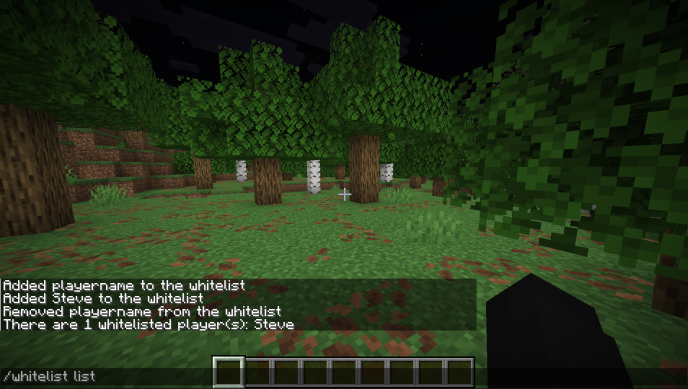
Enable the Whitelist
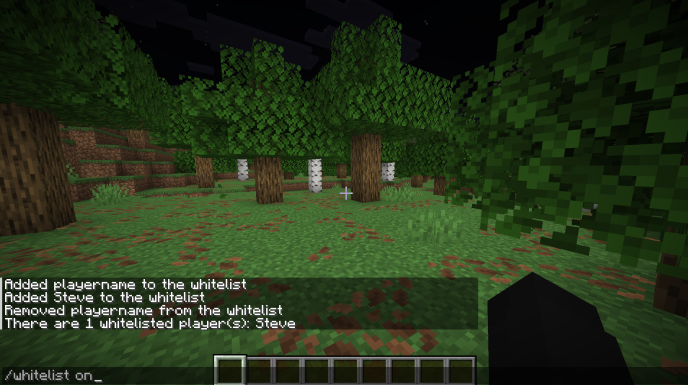
/whitelist on
Disable the Whitelist
/whitelist off
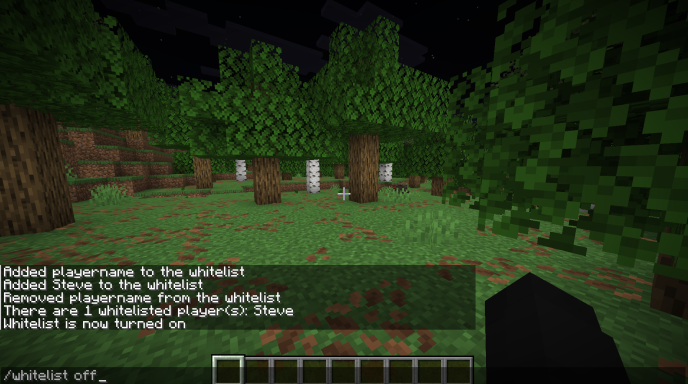
After enabling the whitelist, only approved players will be able to join your server.
Method 2: Whitelisting Players from the Console
If you don't have access to the game, you can use the server console in your Game Panel.
-
Open your Game Panel.
-
Select your Minecraft server.
-
Navigate to the Console page.
-
Enter the same whitelist commands you would use in-game.
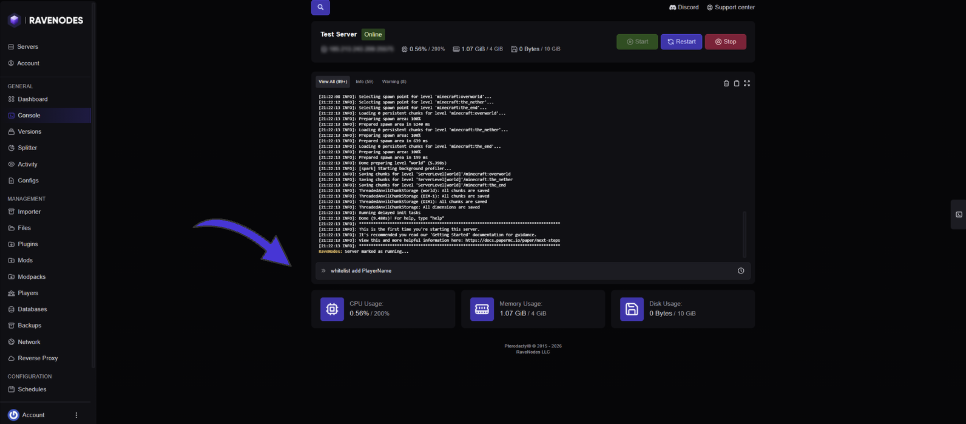
To add a player:
whitelist add PlayerName
To remove a player:
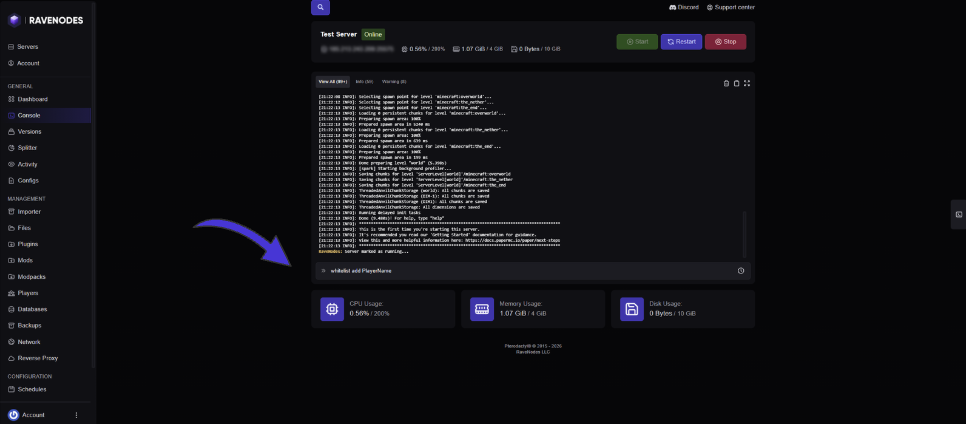
whitelist remove PlayerName
To enable the whitelist:
whitelist on
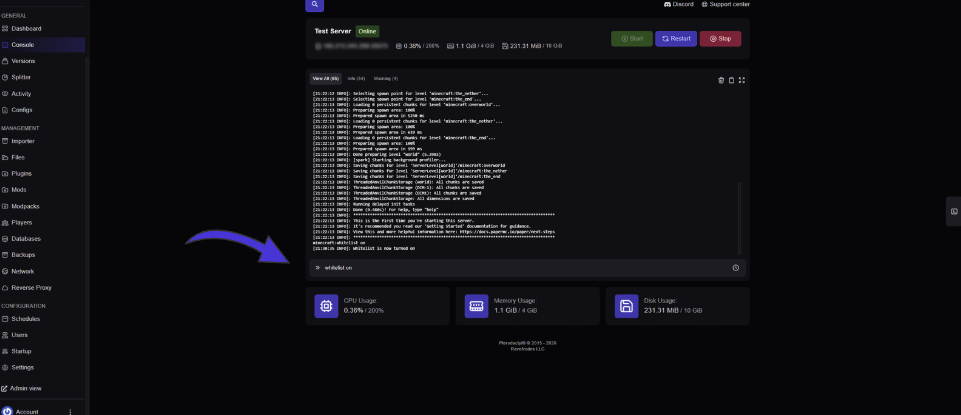
The console does not require a forward slash (/) before commands.
Method 3: Using the Player Manager
If your Game Panel includes the Player Manager addon, managing your whitelist is even easier.
-
Open your Game Panel.
-
Select your server.
-
Open Player Manager from the sidebar.
-
Go to the Whitelist section.
-
Search for the player's Minecraft username.
-
Click Add to whitelist the player.
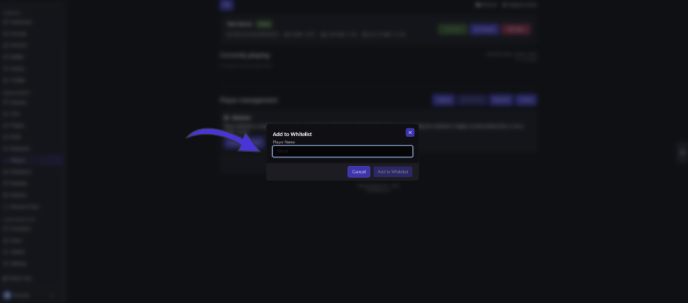
To remove someone from the whitelist, simply locate their name in the whitelist and click Remove.
The Player Manager lets you manage players without remembering commands, making it the easiest option for most server owners.
Common Issues
The player still can't join
Make sure you've entered their Minecraft username correctly. Usernames are case-insensitive, but spelling mistakes will prevent the player from being added.
Whitelist commands don't work
You must be an operator (OP) to use whitelist commands in-game. If you're using the console, make sure the server is online.
The whitelist isn't blocking players
Check that the whitelist is enabled by running:
whitelist on
Adding players to the whitelist alone will not restrict access until the whitelist has been enabled.
Frequently Asked Questions
Does enabling the whitelist kick players who aren't whitelisted?
Yes. Players who aren't on the whitelist will be disconnected the next time the whitelist is enabled or when they attempt to join.
Can operators join even if they aren't whitelisted?
By default, operators may still require whitelisting depending on your server configuration. It's recommended to whitelist all staff members.
Can I whitelist Bedrock players?
If you're using Geyser for crossplay, Bedrock players can also be whitelisted. Make sure you're adding the correct username used to connect to your server.
Which method should I use?
If your Game Panel includes the Player Manager, it's the quickest and most user-friendly option. Otherwise, both the console and in-game commands work equally well.